CTA Tracking Analytics
-
Overview:
CTA Tracking Analytics lets you monitor how your users interact with URLs embedded in WhatsApp templates. By capturing click data, you gain visibility into which links resonate, on which devices, and through which platforms - enabling you to refine your calls - to - action for maximum engagement.
-
Access Path
- Navigate to Analytics in the left menu.
- Choose Marketing, then Template Analytics
- Click the template whose CTAs you wish to analyze.
- Select View Details to open the CTA Tracking dashboard.
Analytics -> Marketing -> Template Analytics -> Select Template -> View Details
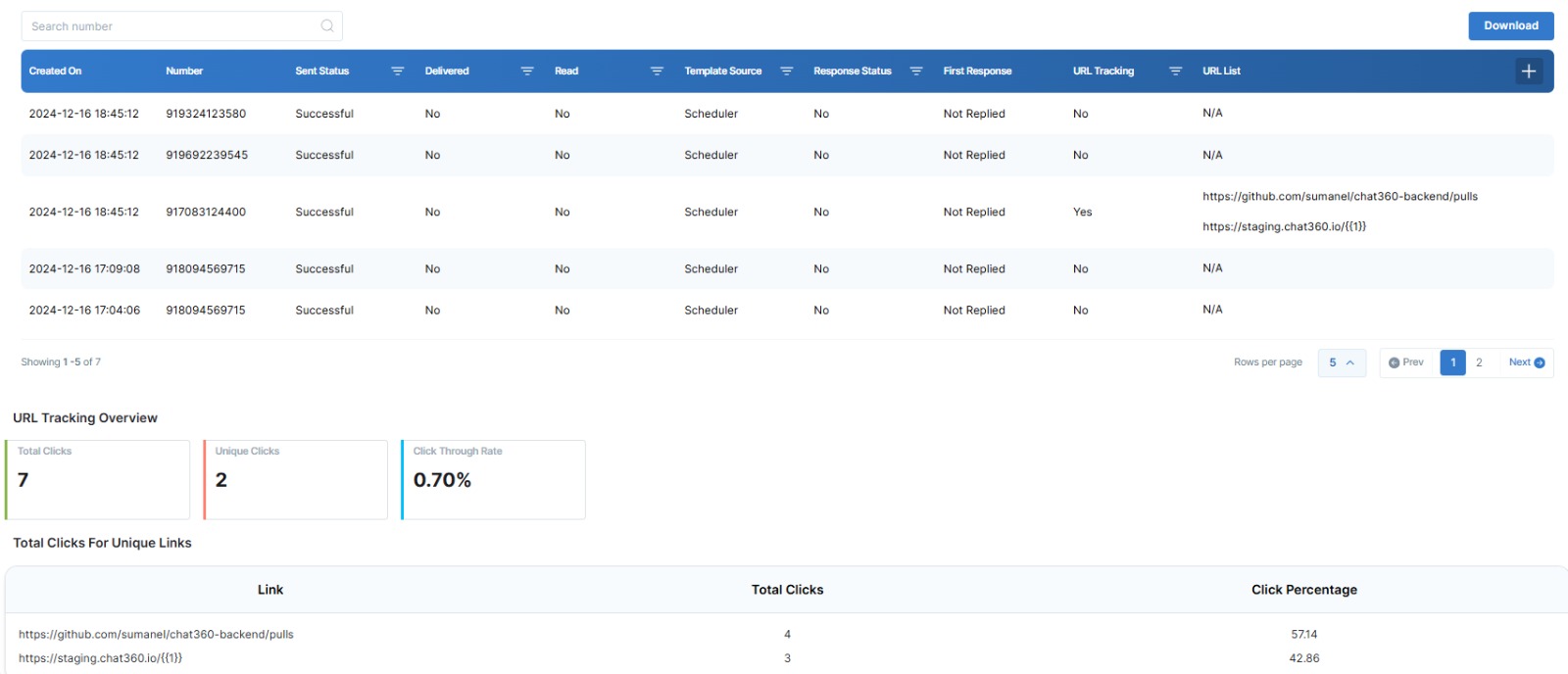
- Message Log
- Timestamp: When the template was invoked.
- Number: Recipient’s phone number.
- Sent Status: Always “Successful” for scheduled or one-off messages.
- Delivered/Read: Whether the message reached and was opened by the recipient.
- URL Tracking: Indicates if tracking was enabled.
- URL List: The list of tracked links included in that message.
At the top of the dashboard, you’ll see a chronological list of each template message sent, including:
- URL Tracking Overview
- Total Clicks: The sum of all clicks across tracked URLs.
- Unique Clicks: Count of distinct users who clicked at least once.
- Click-Through Rate: (Total Clicks ÷ Total Delivered Messages) × 100—for example, 0.70%.
Below the message log, key click metrics are presented as single-tile KPIs:
- Link Performance
- Link URL: The actual tracked hyperlink.
- Total Clicks: How many times that specific URL was clicked.
- Click Percentage: That link’s share of Total Clicks (e.g., 57.14%, 42.86%).
A breakdown of each tracked link shows:
- User Environment Insights
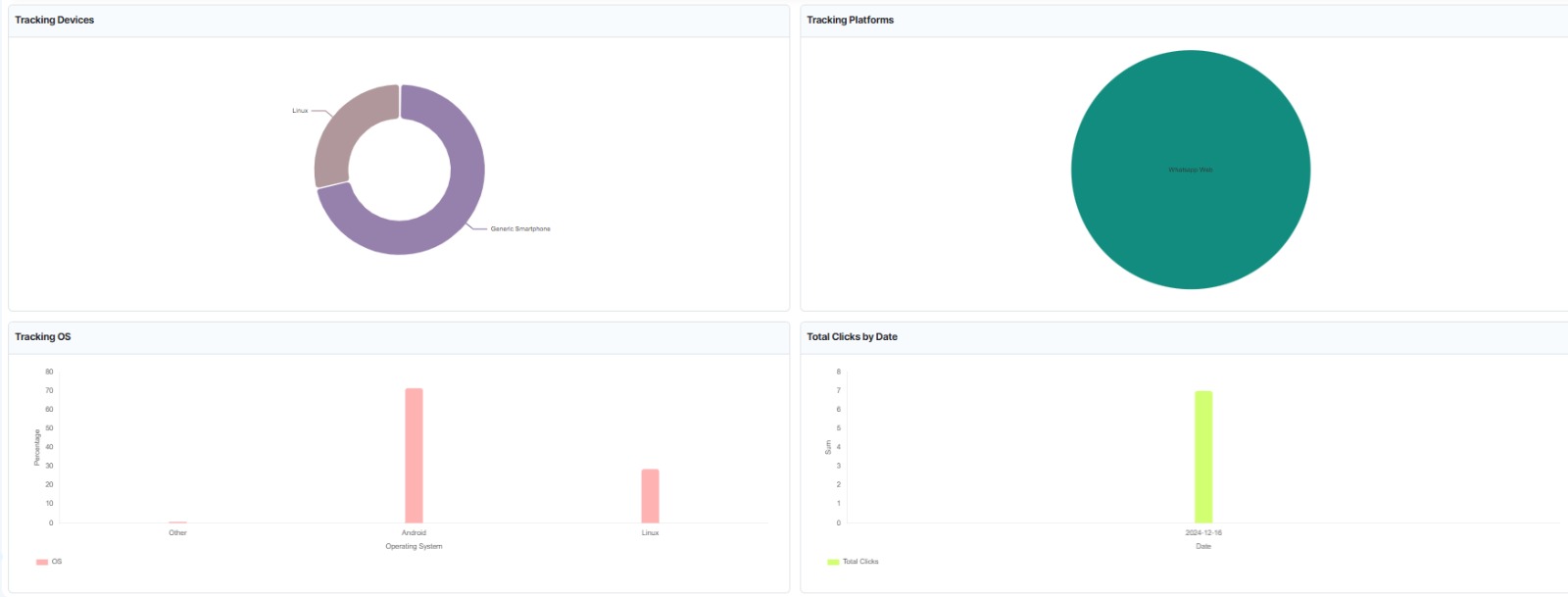
- Tracking Devices: Pie chart showing proportions, e.g., 75% Generic Smartphone, 25% Linux desktop.
- Tracking Platforms: Pie chart illustrating the platform—typically WhatsApp Web dominates.
- Tracking OS: Bar chart with percentages, e.g., Android (70%), Linux (30%), Others (0%).
- Total Clicks by Date: Bar chart plotting click volume over time, helping you pinpoint peak engagement days.
Four visual panels reveal where and how clicks occurred:
- Use Case Example
- Total Clicks: 50
- Unique Clicks: 40 (4% CTR)
- Blog Post: 30 clicks (60%)
- Demo Video: 20 clicks (40%)
- Devices: 80% on smartphones, 20% on desktop
- Peak Day: December 16th with 35 clicks
A SaaS provider embeds two links in their “New Feature” template—one to a blog post, another to a demo video. After sending to 1,000 users, the dashboard shows:
Armed with these insights, the marketing team can prioritize mobile-optimized content and schedule follow-up campaigns on high-traffic days.