Live Chat:
Chat360’s Live Chat unifies conversations from WhatsApp, Web, Facebook, Instagram, Telegram, Twitter, SMS, and Google Business Messages into one real-time dashboard. Support teams can monitor and respond to all incoming traffic without switching platforms.
-
Chat Room Sections
- Unassigned: Active bot-driven or user-initiated conversations awaiting agent assignment.
- Assigned: Chats taken over by a specific agent for one-on-one handling.
- Archived: Completed or inactive threads retained for audit and reference.
Incoming chats are organized by status:
-
Unassigned Section Features
- Enter Chat: Jump into a live conversation to take control.
- AI Tone & Translation: Automatically adjust message tone (e.g., friendly, formal) and translate into the user’s chosen language.
- Create Ticket: Spin up a support ticket with prefilled issue details.
- Attachments & Quick Replies: Share images, documents, emojis, or send templated responses in one click.
- Sticker Support: Liven up the exchange with chat stickers.
Even while the bot is interacting, an Admin can step in at any moment:

-
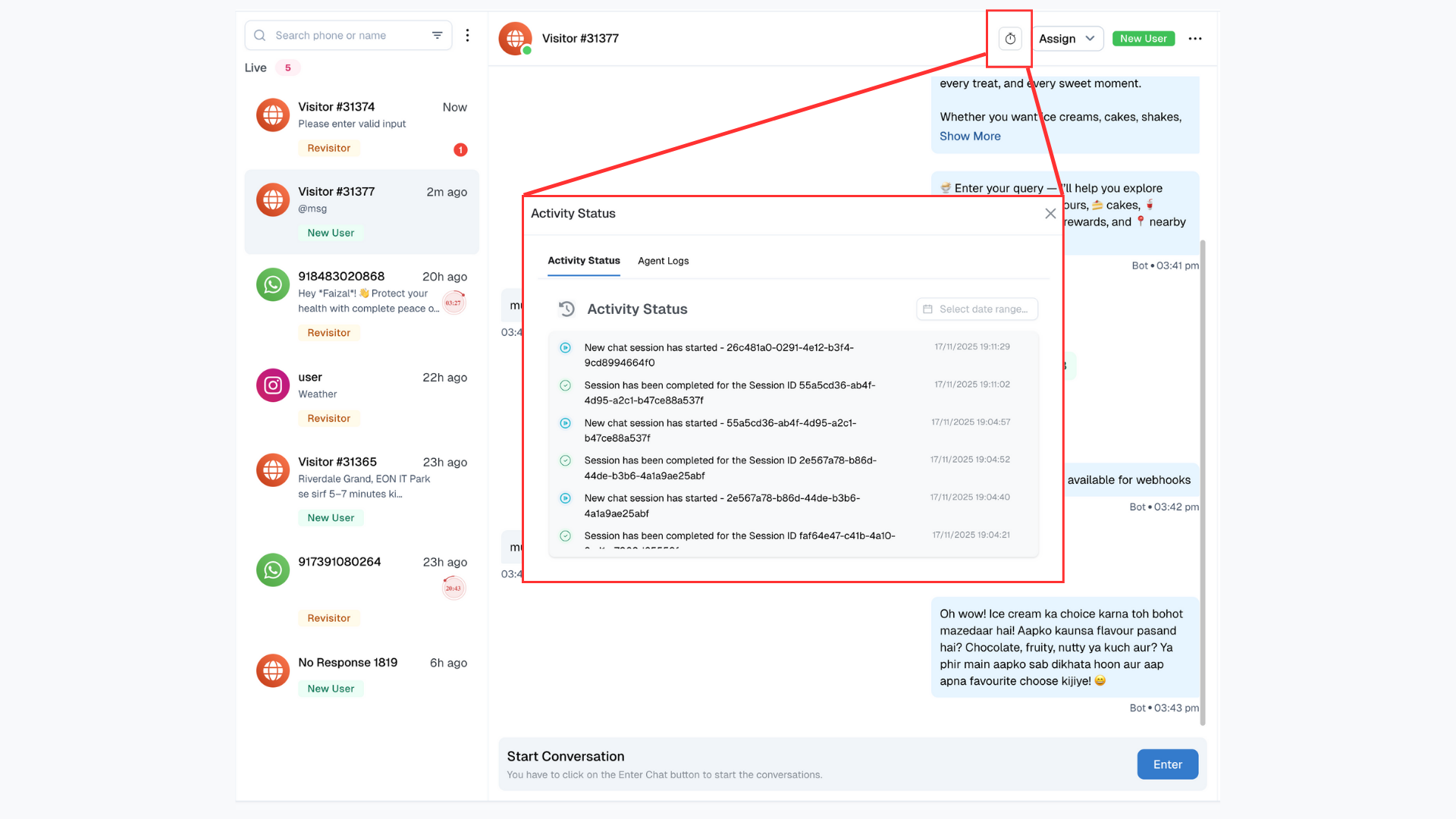
Activity Status
- The Activity Status section offers robust monitoring by separating two key areas: visitor/bot/live chat activity and agent session time logs. This enhances tracking and operational transparency in Live Chat platforms.
-
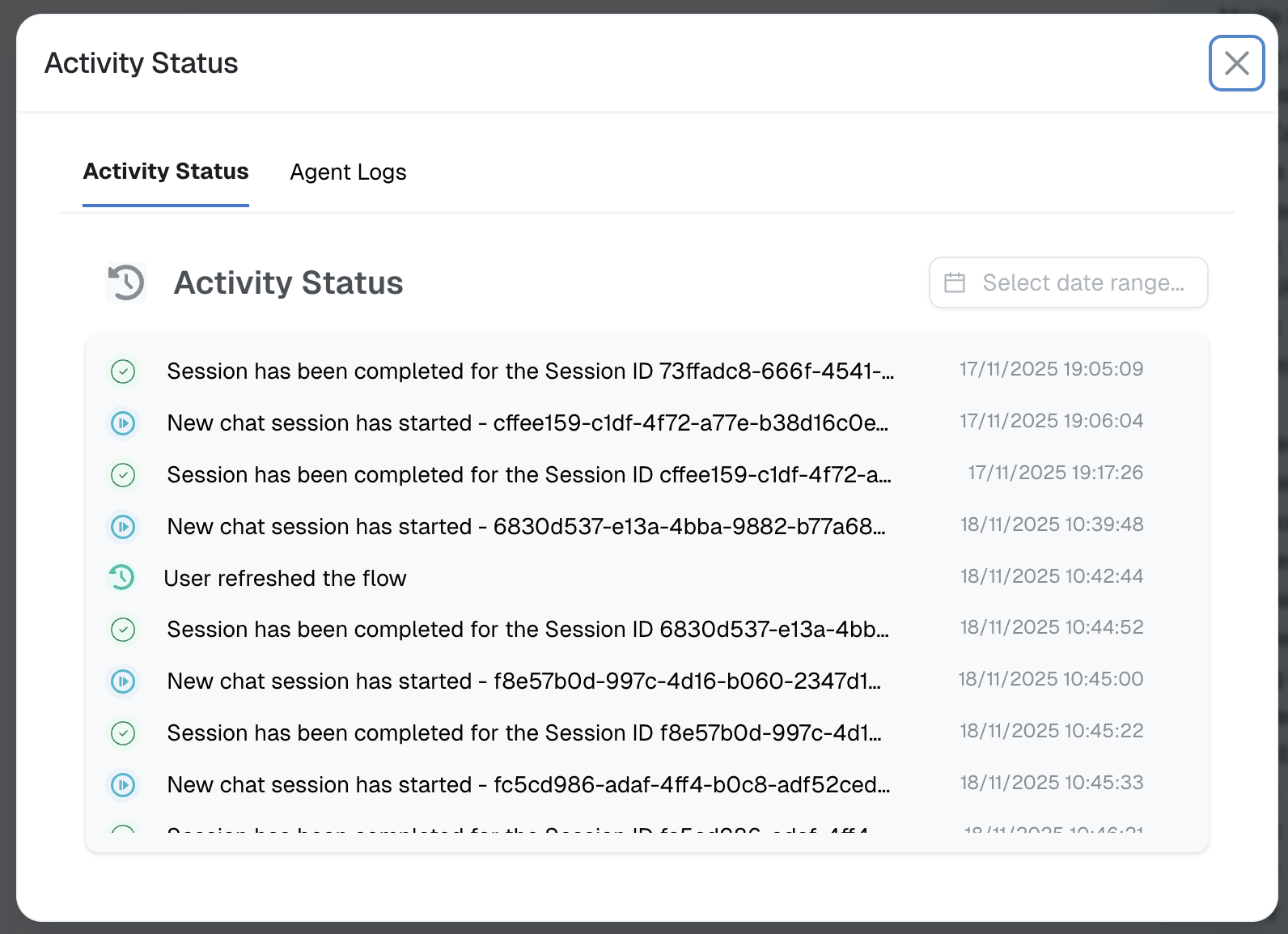
Visitor, Bot & Live Chat Activity
- Keeps a real-time log of actions taken by visitors, bots, and live chat sessions, including session start and completion statuses.
- Enables easy date-wise filtering, so you can review chat activity for any desired period.
- Supports clear chronological tracking of chat flow and user engagement across all sessions.
This part of the Activity Status feature meticulously records all interactions:
-
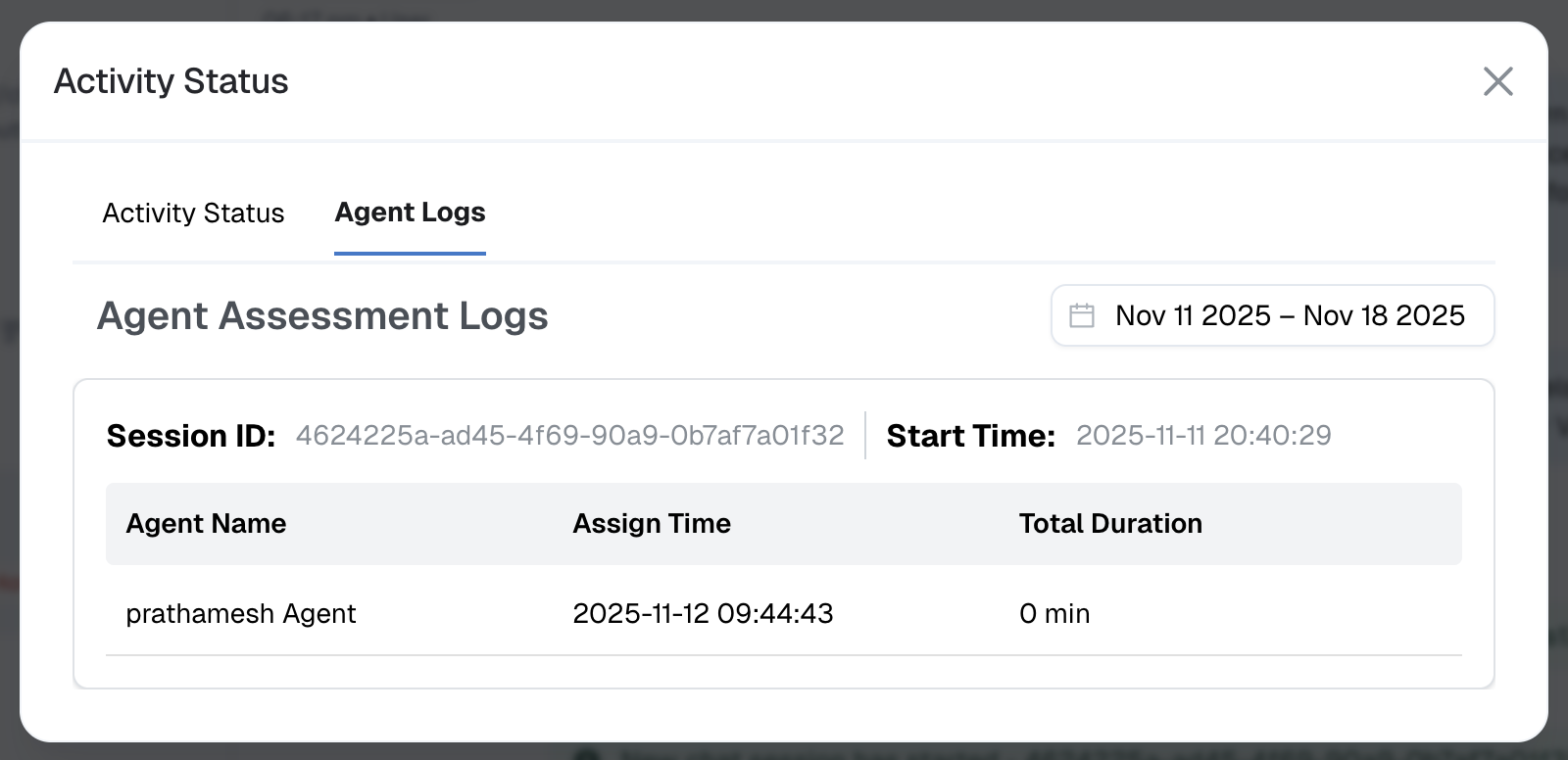
Agent Session Time & Agent Logs
- View both total session time and current active session time for each agent, on a per-visitor basis.
- Track every agent who has interacted with a particular visitor, capturing the complete engagement timeline.
- Monitor cumulative session duration from all participating agents, ensuring a full account of conversation handling.
Agent logs provide administrators with detailed visibility into how agents interact with visitors during chats:
This breakdown not only clarifies agent accountability but also significantly streamlines oversight, making it easier to identify bottlenecks and improve support processes.
-
Managing Chat Status
- Resolve Chat: Mark the conversation as complete.
- Mark as Abandoned: Close out chats where the user has dropped off.
- Label as Critical: Flag high-priority issues for escalation.
- Add a Comment: Annotate the chat with context or next steps.
- Send Feedback Prompt: Optionally request user feedback before closing.
Once a query is handled, agents or managers can update the chat lifecycle:
-
Saving Contacts for Follow-Up
- In the Live Chat header, click the “⋯” menu → Save Contact.
- Enter Name, Phone Number, Tags, and any custom fields.
- Retrieve saved contacts later under Contacts for marketing or support follow-ups.
Capture hot leads or important users directly from chat:
-
Transcripts & Compliance
- Download Chat Transcript: Click the download icon to export a full conversation log—for audits, training, or compliance.
Maintain a record of every interaction:
-
Blocking & Unblocking
- In a chatroom’s “⋯” menu, choose Block → select duration → Continue.
- To restore access, repeat and select Unblock.
Protect your team from abuse or spam:
-
Use Case Examples
- E-Commerce Support: A customer hits “Enter Chat” during the returns flow to clarify policy.
- Multilingual Assistance: A Spanish-speaking user is auto-translated, and tone is set to “formal” when an enterprise client connects.
- Lead Generation: High-value prospects are saved as contacts for personalized follow-up campaigns.