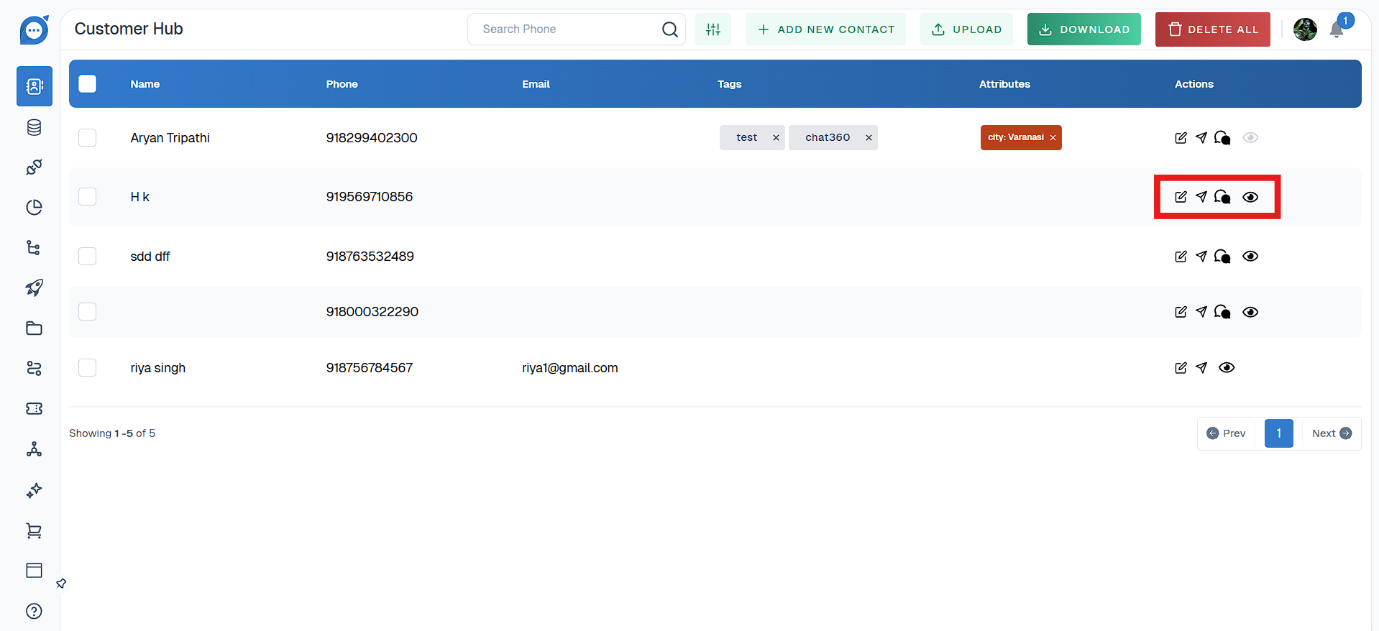
Customer Hub
Customer Hub is a centralized digital interface designed to manage and organize all customer-related information and interactions in one place. It serves as the main point of reference for customer data, making it easier for businesses to track, engage, and support their customers efficiently.
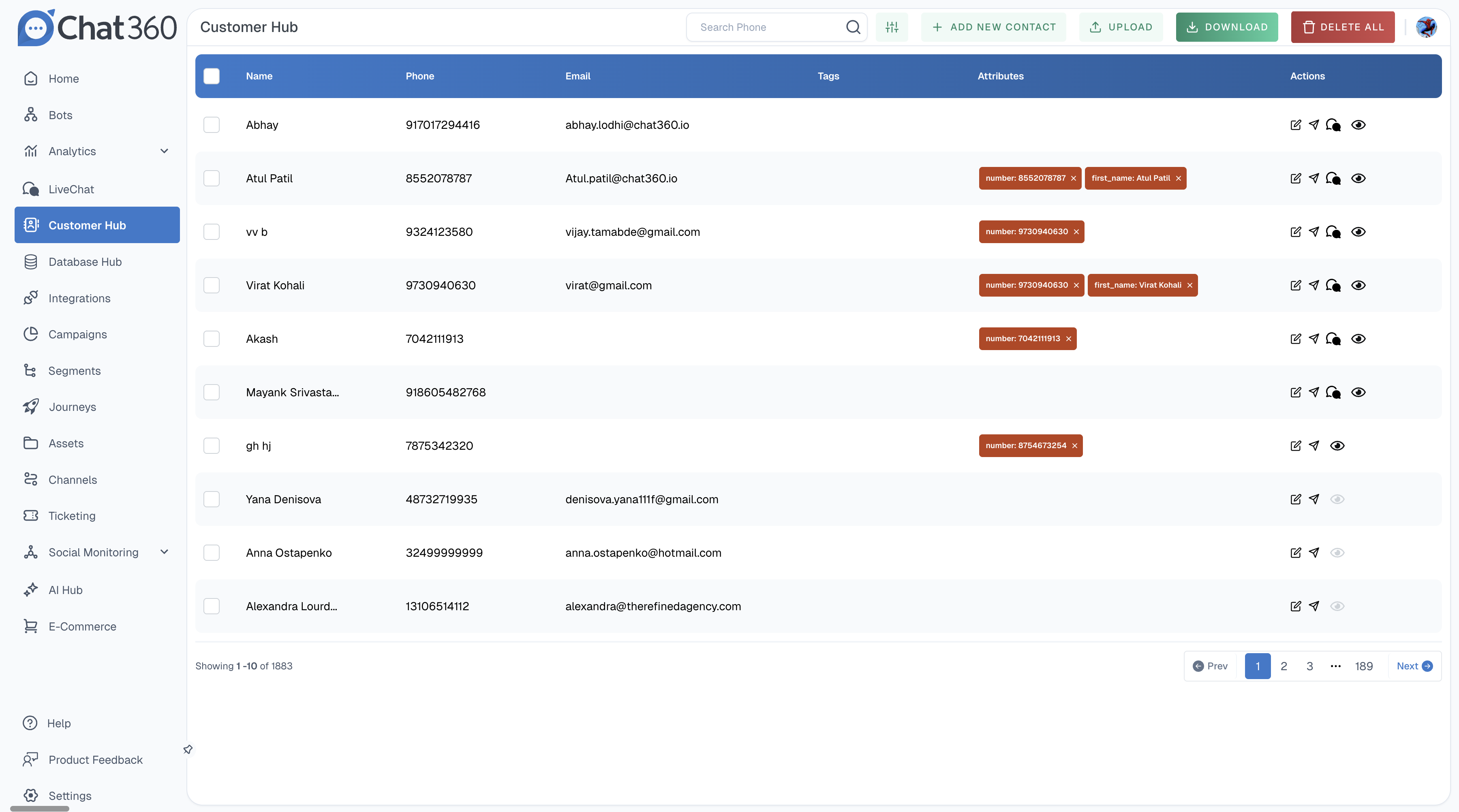
-
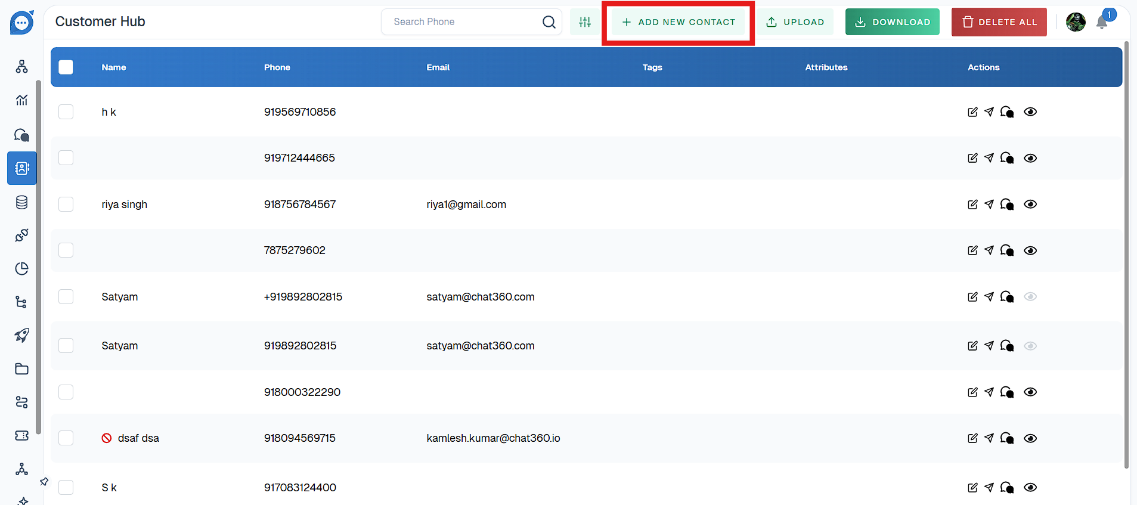
To Add a New Contact in Customer Hub
1. SELECT + ADD NEW CONTACT
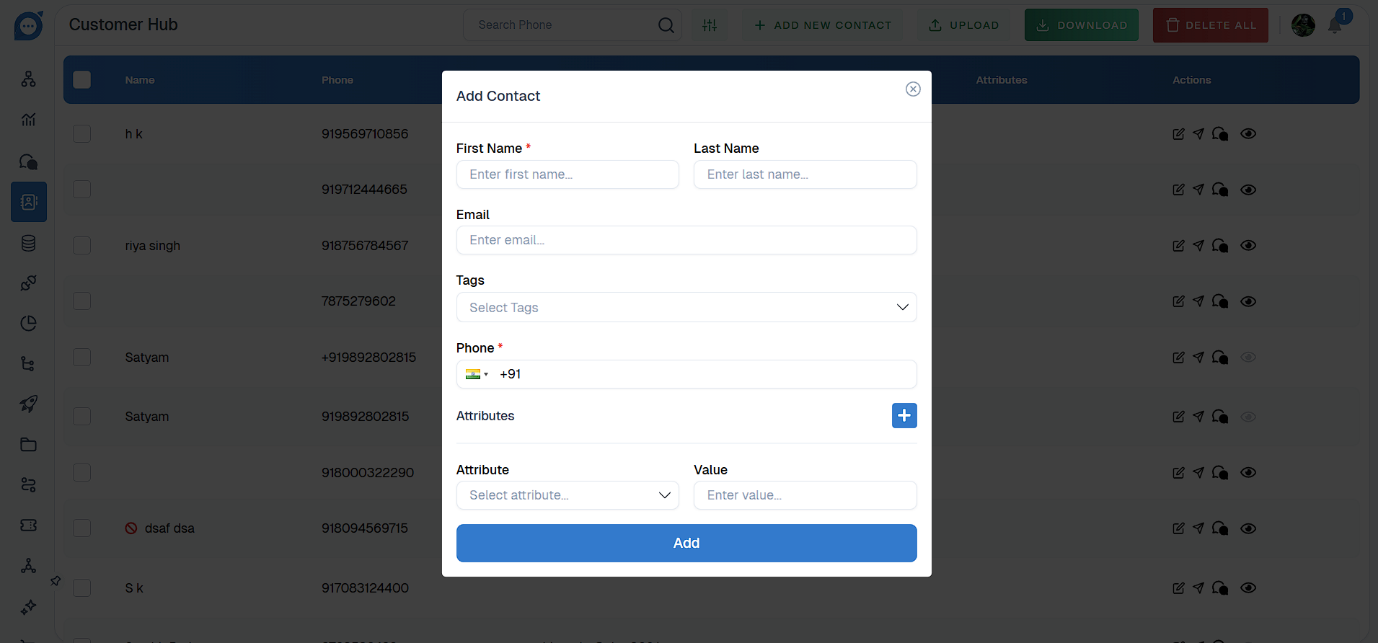
2. Now fill in all the required details and click on Add to add the contact.
-
Searching and Filtering Contacts –
- The Customer Hub provides two easy ways to locate contacts:
1. Quick Search on the Search bar :
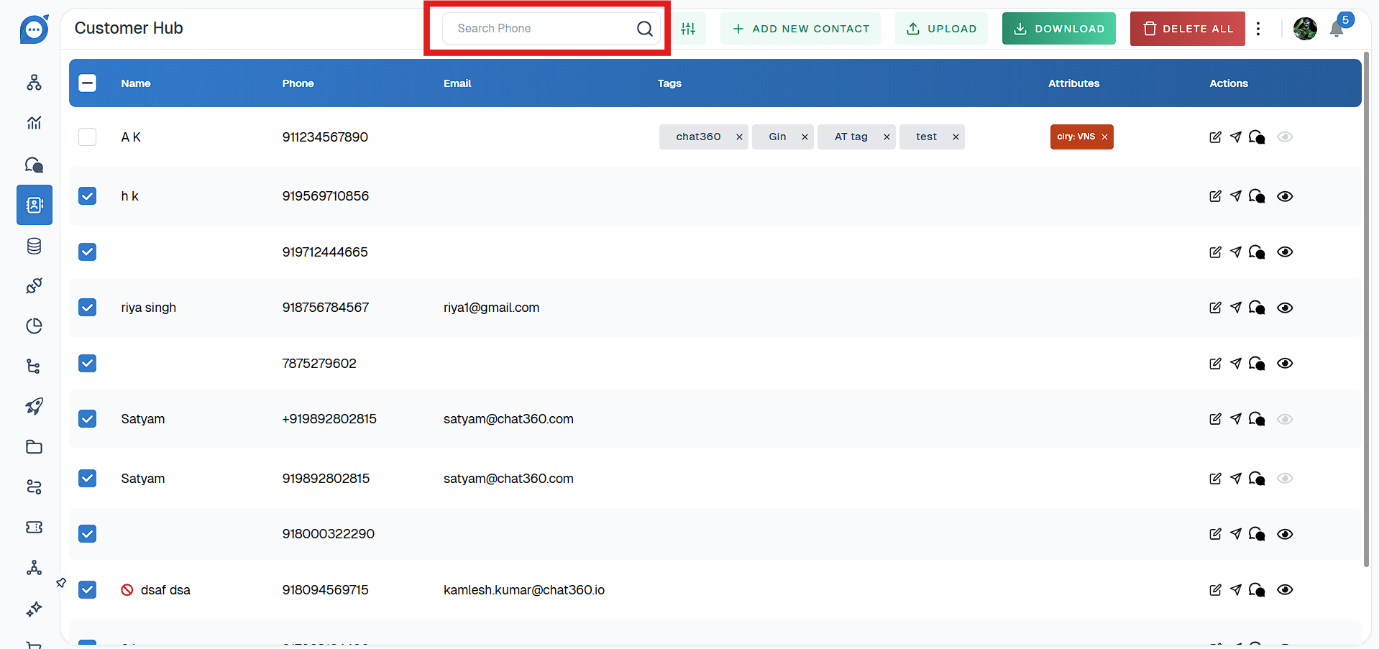
- At the top of the contacts list, you’ll find a search bar.
- Simply type a name, phone number, email, or any other keyword related to the contact you’re looking for.
- The list will instantly update to show only the contacts matching your search term.
- This is the fastest way to find a specific contact without setting up any filters
2. Filtering Contacts for Advanced Search
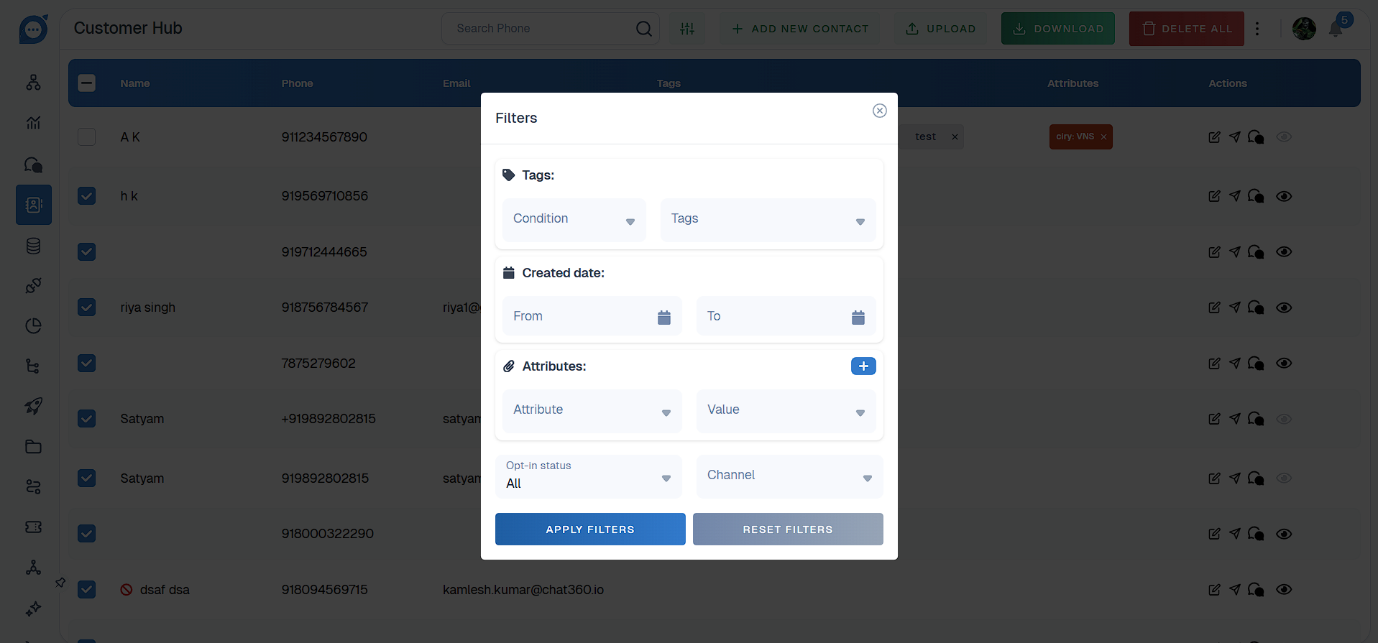
Use the filter option to narrow down contacts based on specific criteria, such as tags, attributes, created date, or other custom fields.
You can add multiple filters to refine your results further.
-
Uploading Contacts
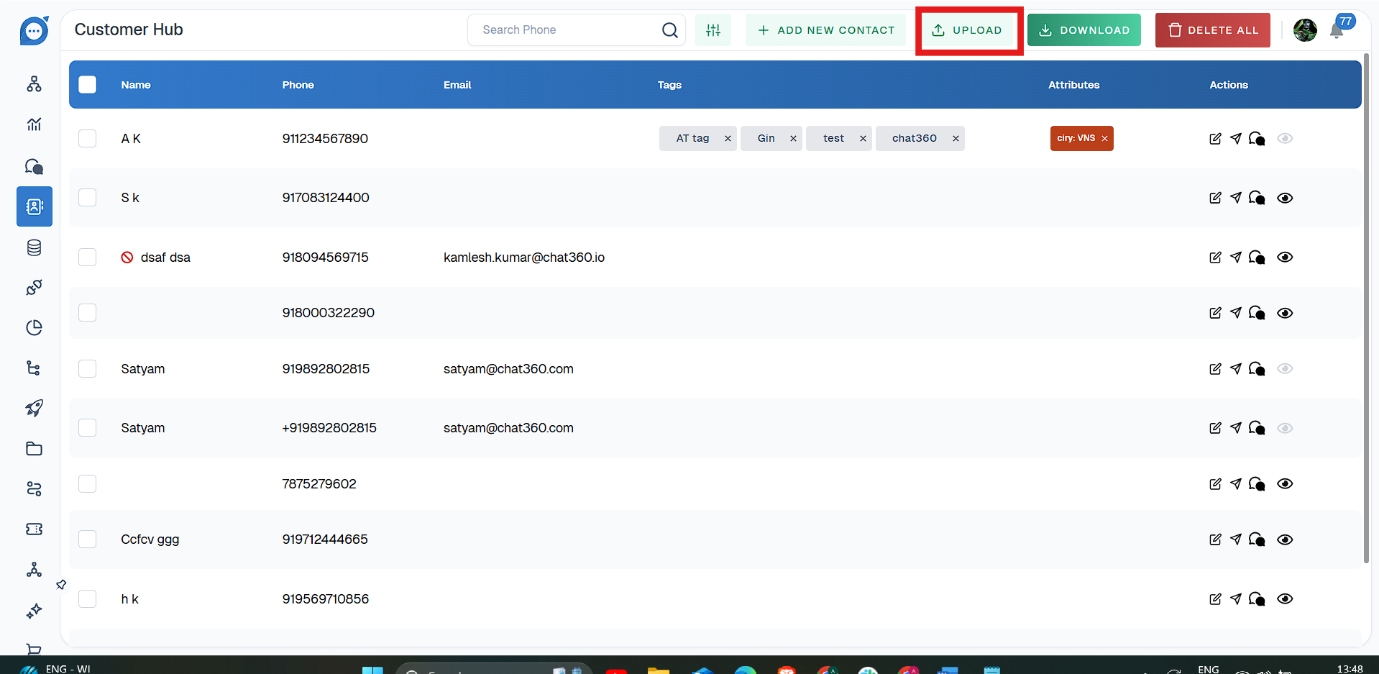
The Customer Hub makes it easy to upload a list of contacts in bulk using a CSV (Comma-Separated Values) file. This is especially useful when migrating data from another system or onboarding a large number of new customers.
-
Step-by-Step Guide to Upload Contacts:
1. Prepare Your CSV File: Create a spreadsheet with columns such as Name, Phone, Email, and any custom attributes you want to include (e.g., City, Tags). Save the file in CSV format (.csv).
2. Access the Upload Feature: Go to the Customer Hub dashboard. Click on the Upload button.
3. Check Uploaded Contacts: Once the upload is complete, your new contacts will appear in the Customer Hub list.
-
Downloading Contacts
You can easily export your entire contact list or selected contacts from the Customer Hub.
-
Steps to Download Contacts:
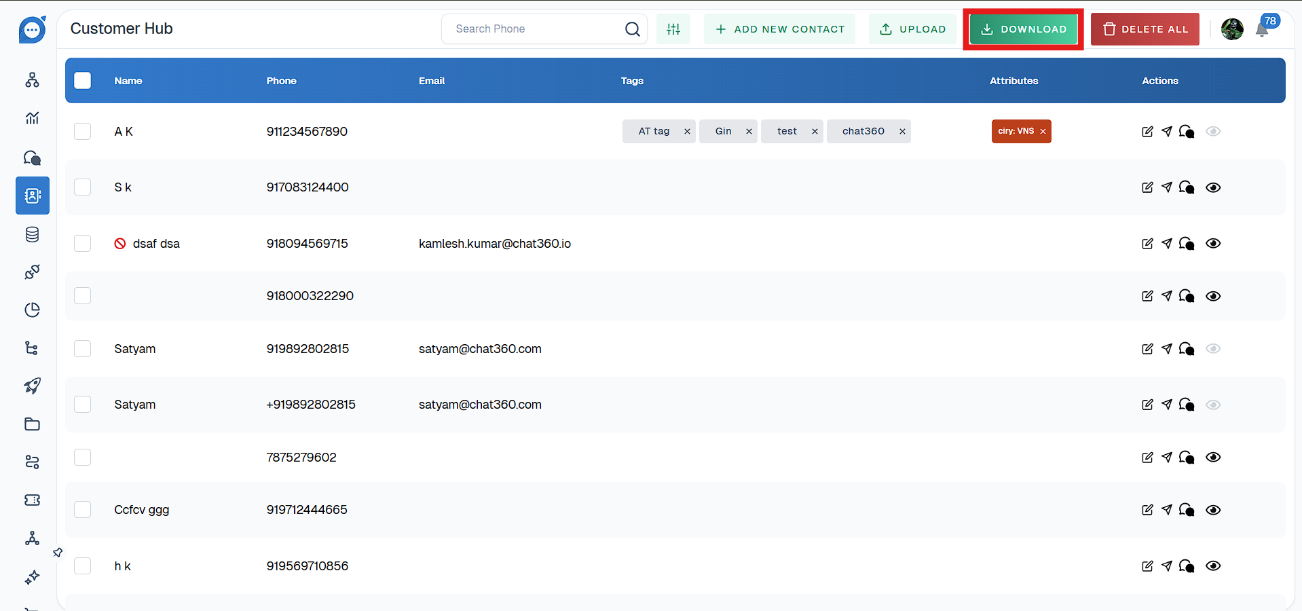
1. Go to Customer Hub: Open the Customer Hub dashboard.
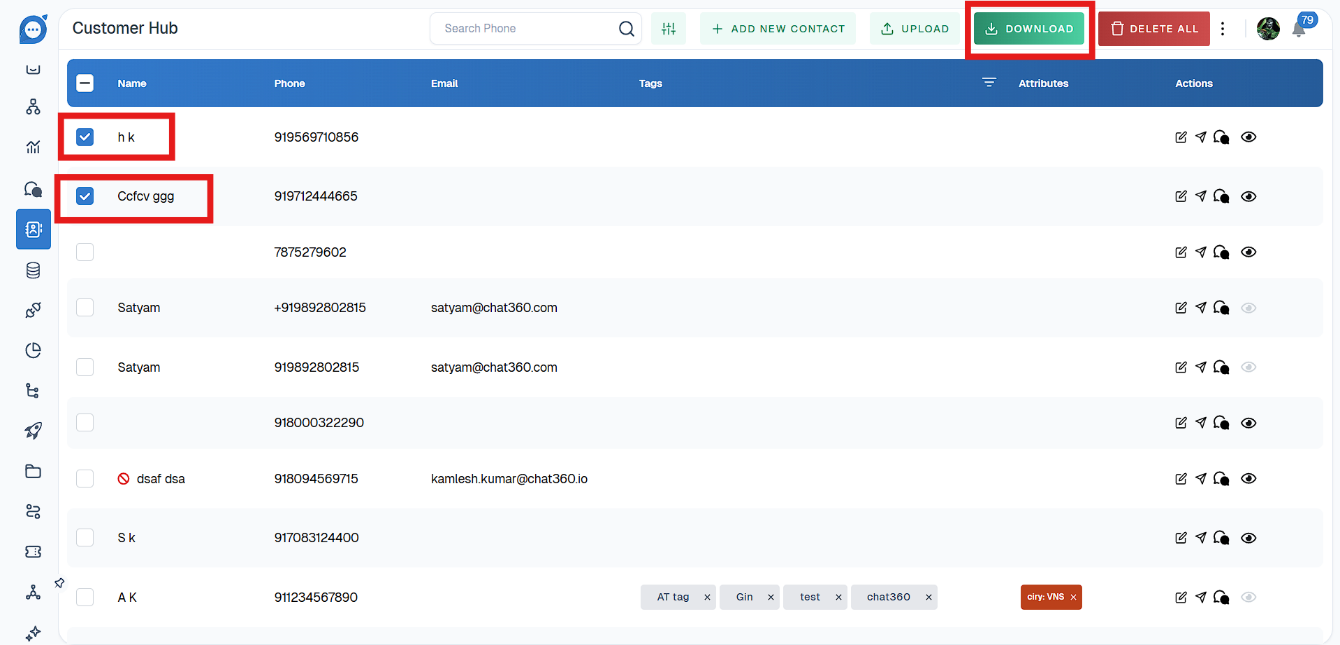
2. Select Contacts (Optional): If you want to download specific contacts, use the checkboxes to select them. To download all, skip this step.
3. Click the Download Button: Click the Download button.
-
Deleting Contacts
You can delete individual contacts or remove all contacts in bulk.
-
Steps to Delete Contacts:
- Locate the Contact: Find the contact you wish to delete in the Customer Hub list.
- Click the Delete Icon: Click the delete (trash bin).
- Confirm Deletion: A confirmation prompt will appear.
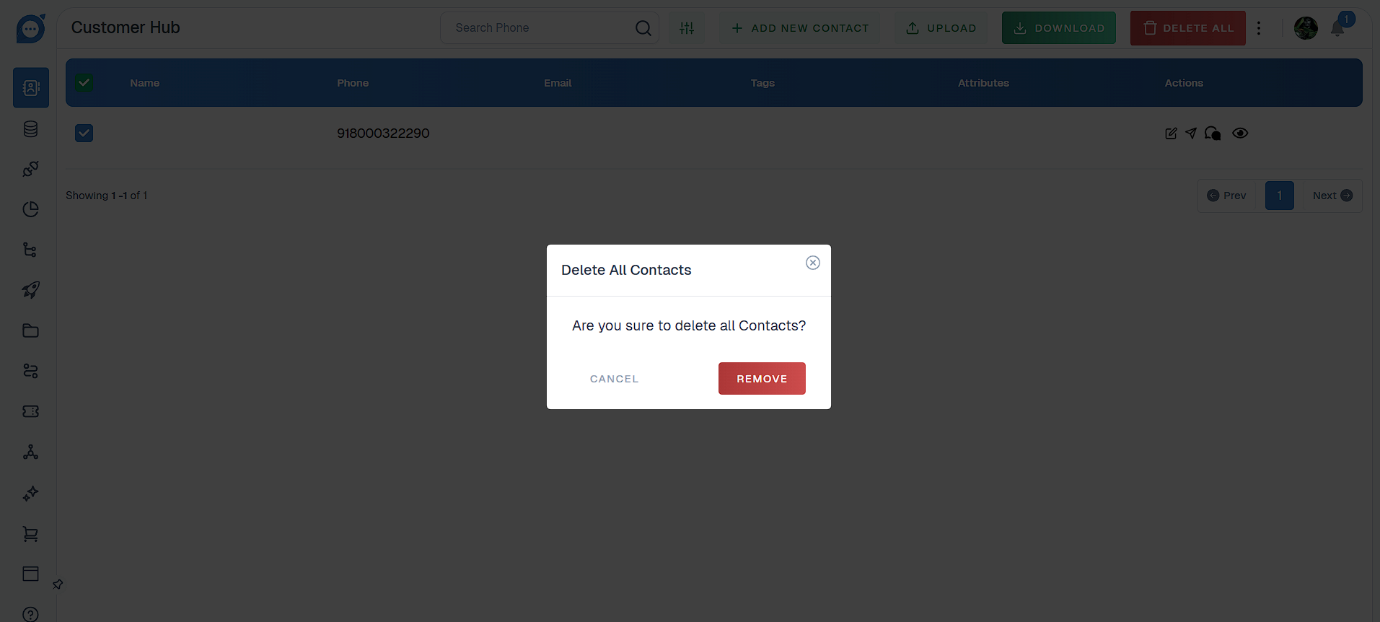
- Click ‘Delete All’ Button: At the top of the Customer hub click the Delete All button.
A. Delete Individual Contacts
B. Delete All Contacts
-
Actions
- Use Edit to update customer information.
- Use Message to communicate directly with the customer.
- Use View to see the customer’s complete details and history.
- Use Delete to remove a customer from the database.
In the Customer Hub, the "Actions" column provides the following options for every contact.