Reports & Report Scheduler
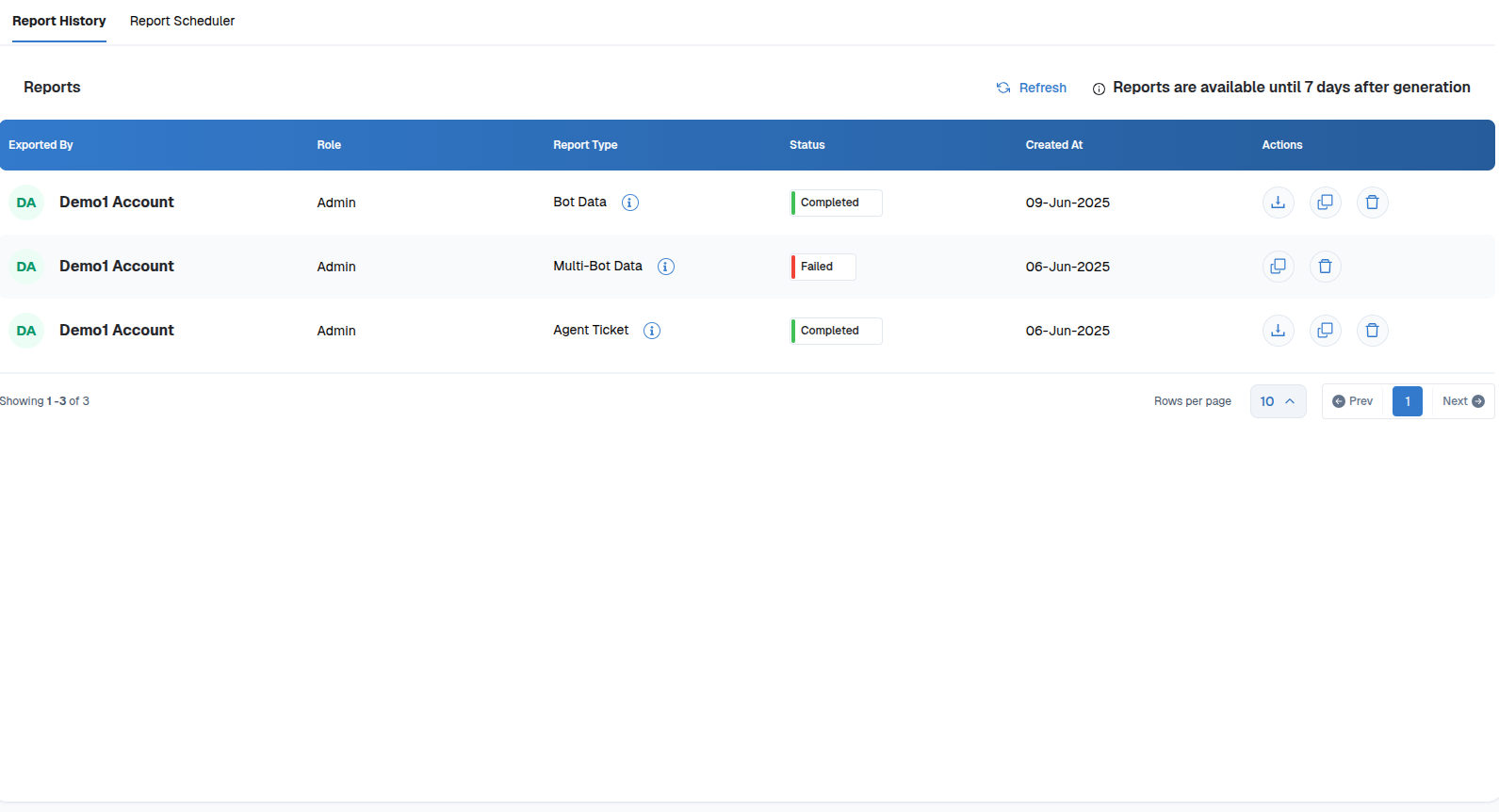
The Reports section in Chat360 maintains a complete history of every generated and downloaded analytics report. Whenever a user requests a report—whether Bot Data, Multi-Bot Data, Agent Tickets, or Template Stats—the system processes the data in the background and logs the request under Report History. Completed, failed, or in-progress statuses are clearly marked, and reports remain available for download for 7 days after generation.
- Accessing Generated Reports
- 1. Navigate to: Analytics → Reports → Report History
- 2. View Report List
- Exported By: Identifies the user or account that initiated the report.
- Role: Shows the user’s role (e.g., Admin, Manager).
- Report Type: Indicates the kind of data (Bot Data, Multi-Bot Data, Agent Ticket, Template Stats).
- Status Displays Completed, Failed, or Progress.
- Created At: Timestamp when the report was generated.
- 3. Actions
- Download (⇩): Retrieve the report file (CSV/Excel).
- Delete (🗑): Remove the record from history.
- Report Scheduler
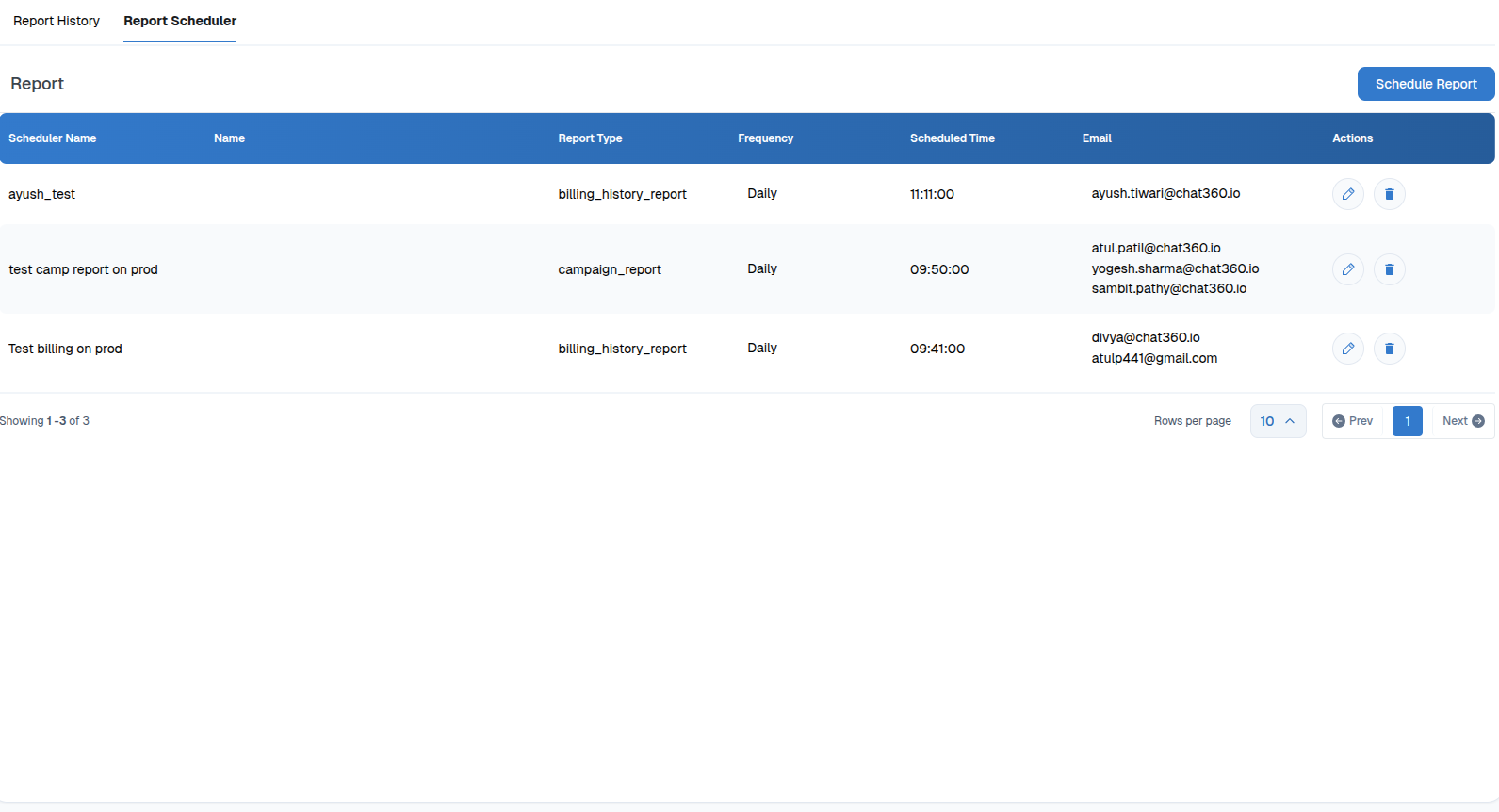
Configuration Process
- Navigate to: Analytics → Reports → Report Scheduler
- Schedule a New Report
- Click Schedule Report to open the setup dialog.
- Select Report Type: Choose from available templates (e.g., BOT Report).
- Scheduler Name: Enter a descriptive name (e.g., “Daily Campaign Performance”).
- Select Frequency: Pick Daily, Weekly, or Monthly.
- Select Time: Specify the exact hour and minute for delivery (24-hour format).
- Send Email: Add up to three recipient addresses; press Enter after each.
- Click Submit to save the schedule.
- Manage Scheduled Reports
- Edit (✎): Modify frequency, time, or email recipients.
- Delete (🗑): Remove a schedule to stop future deliveries.
-
Functional Details
- Processing Time: Large datasets may take several minutes to compile. Scheduled reports queue in the background and are delivered once generation completes.
- Retention: Generated reports remain in Report History for 7 days; scheduled reports are visible indefinitely until deleted.
- Notifications: If a scheduled report fails, an email notification is sent to the scheduler owner.
The Report Scheduler allows administrators to automate the delivery of specific reports to designated email recipients at defined intervals. By scheduling reports, teams can receive daily, weekly, or monthly insights without manual intervention, ensuring that stakeholders always have up-to-date analytics.
Thank you for your feedback!
We appreciate your feedback!