Multi-Factor Authentication
-
Overview
Multi-Factor Authentication (MFA), also known as two-step verification, adds an extra layer of security to your Chat360 account by requiring a second form of verification—typically a time-based one-time password (TOTP)—in addition to your regular password. Enabling MFA helps protect against unauthorized access, safeguards sensitive data, and ensures compliance with security best practices.
-
Steps to Enable MFA in Chat360
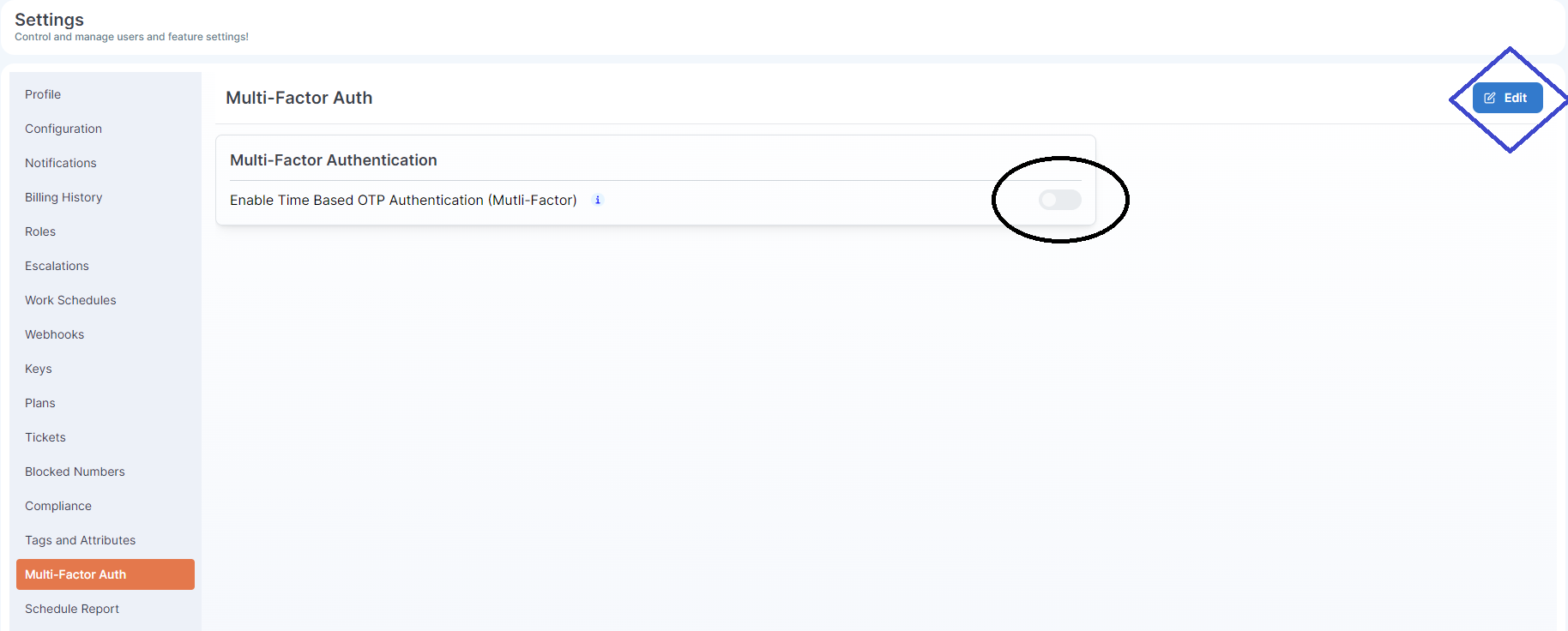
- In your Chat360 dashboard sidebar, click Settings.
- Scroll to Multi-Factor Authentication (or Auth) and click to expand.
- Click the Edit icon (♦) next to Time-Based OTP Authentication, then toggle Enable.
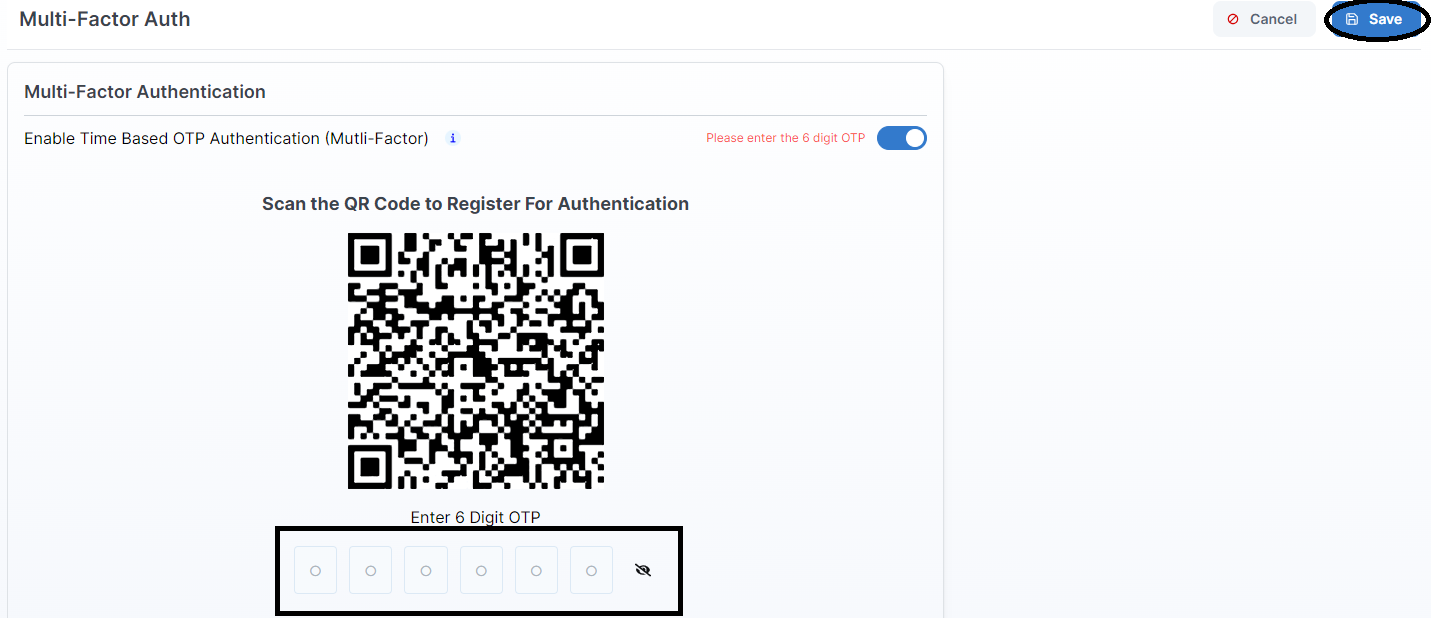
- Use Google Authenticator (or any TOTP app) to scan the displayed QR code.
- Enter the 6-digit code from your authenticator app into the field below the QR code, then click Confirm.
- After activation, download or securely store any provided backup codes—these allow access if you lose your device.
-
1. Navigate to Settings
4. Scan QR Code
6. Backup Codes (Optional)
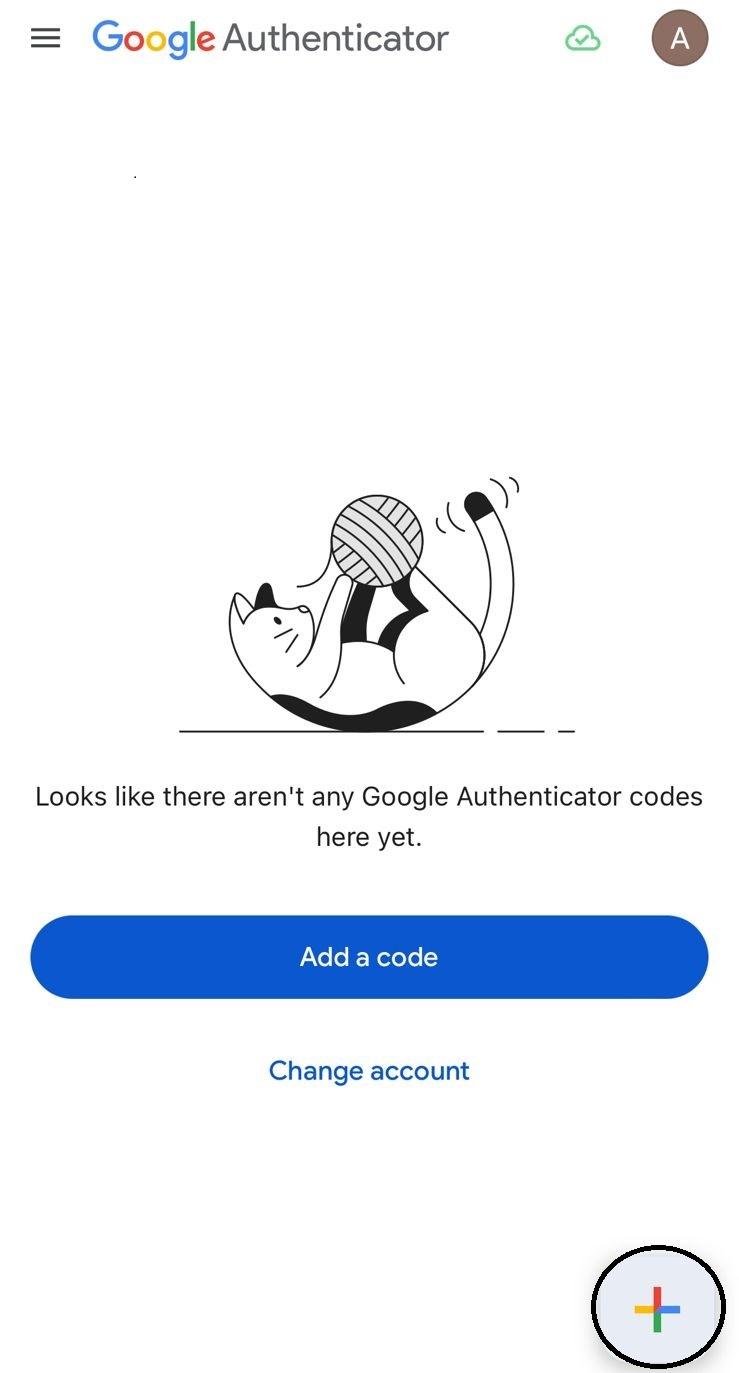
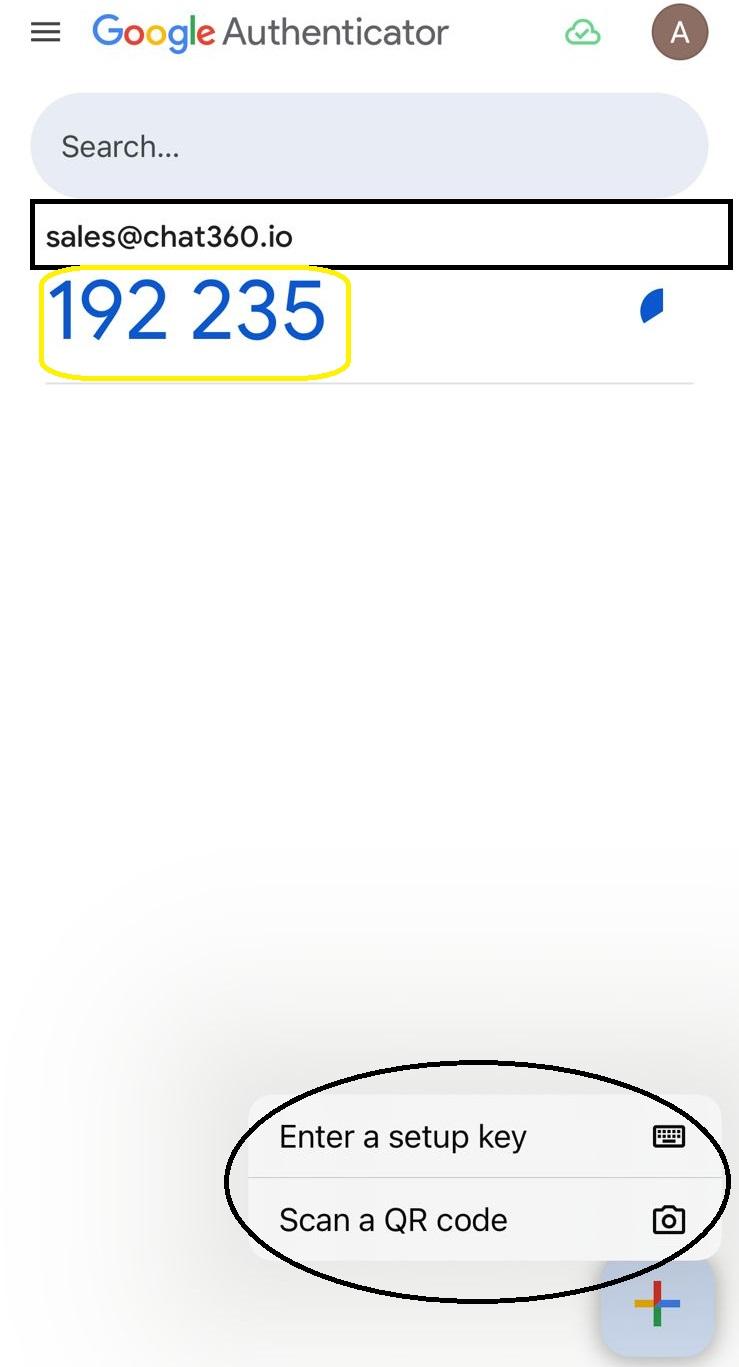
-
Key Benefits
- Enhanced Account Security
- Regulatory Compliance
- Protection Against Credential Theft
Requiring both “something you know” (password) and “something you have” (authenticator app) dramatically reduces the risk of account takeovers.
Helps meet industry standards (e.g., GDPR, CCPA) by enforcing strong authentication for sensitive operations.
Even if a password is compromised, attackers cannot access your account without the time-based OTP generated on your device.
-
Use Cases
- By enforcing MFA on admin and agent accounts, you ensure that even if a password leaks, unauthorized parties cannot access user data or analytics.
- MFA requires a second factor that cannot be phished via email or fake login pages, blocking most credential-stealing attempts.
- Require agents to re-authenticate with MFA before accessing sensitive settings (e.g., webhooks, billing) to prevent accidental or malicious configuration changes.
- With teams increasingly working off-site, MFA ensures that only verified devices can access Chat360, safeguarding against insecure networks and endpoints.
-
1. Protect Consumer Data from Identity Theft
Enabling MFA is a simple yet powerful step toward fortifying your Chat360 environment—protect your account, your data, and your customers with multi-factor authentication today.