Zoho CRM Integration
-
Overview
Seamlessly integrate Chat360 with Zoho CRM to engage leads directly via WhatsApp, automate messaging workflows, and centralize customer interactions—all without leaving your CRM. This integration transforms Zoho into a powerful hub for real-time conversational outreach, boosting response rates and operational efficiency.
-
Prerequisites
- Active Chat360 account with administrative privileges
- Administrative access to Zoho CRM
- Chat360 API Key and Secret on hand
-
Configuration Steps
- In Zoho CRM, navigate to Setup → Marketplace → All.
- Search for Chat360 in the marketplace’s search bar.
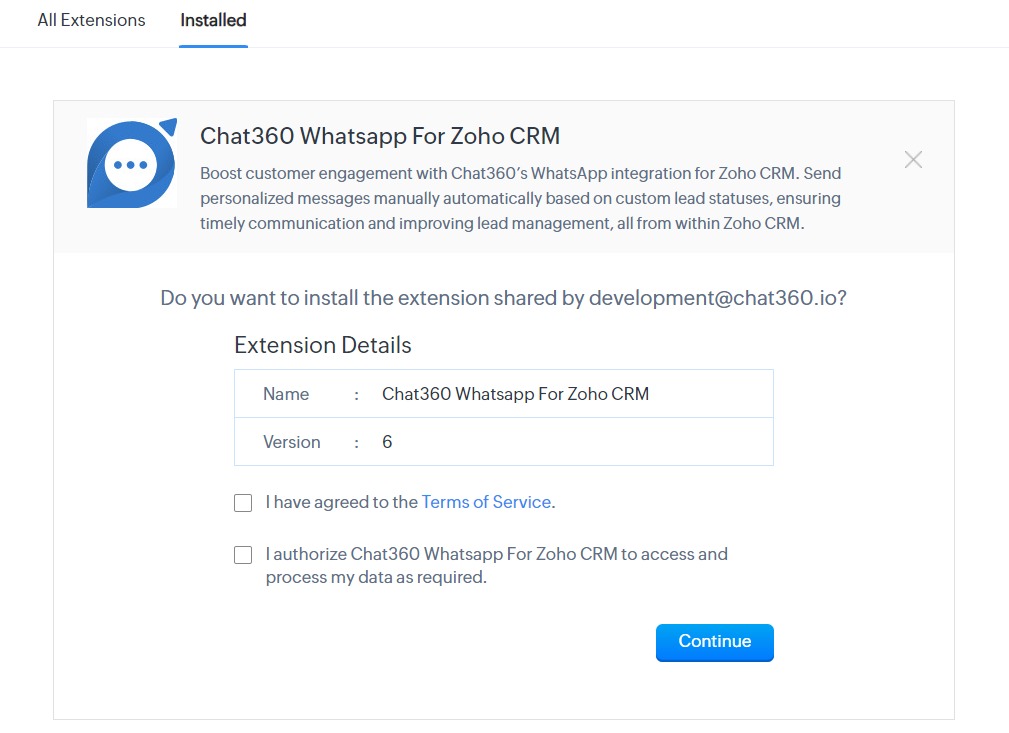
- Click Install next to the Chat360 listing.
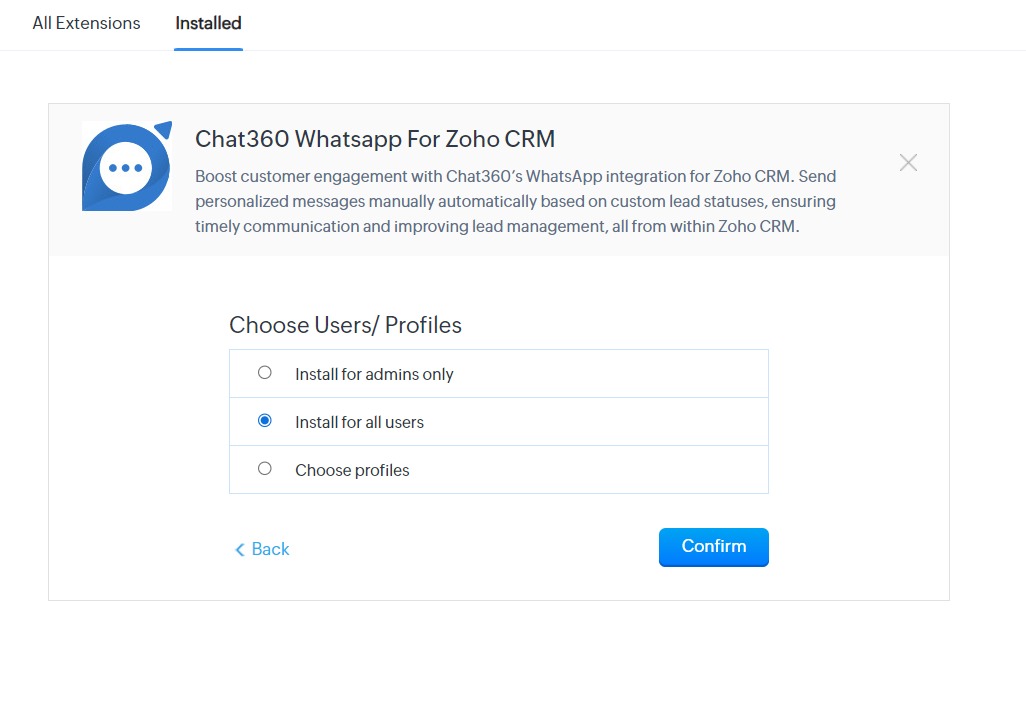
- Accept required permissions and complete the on-screen prompts.
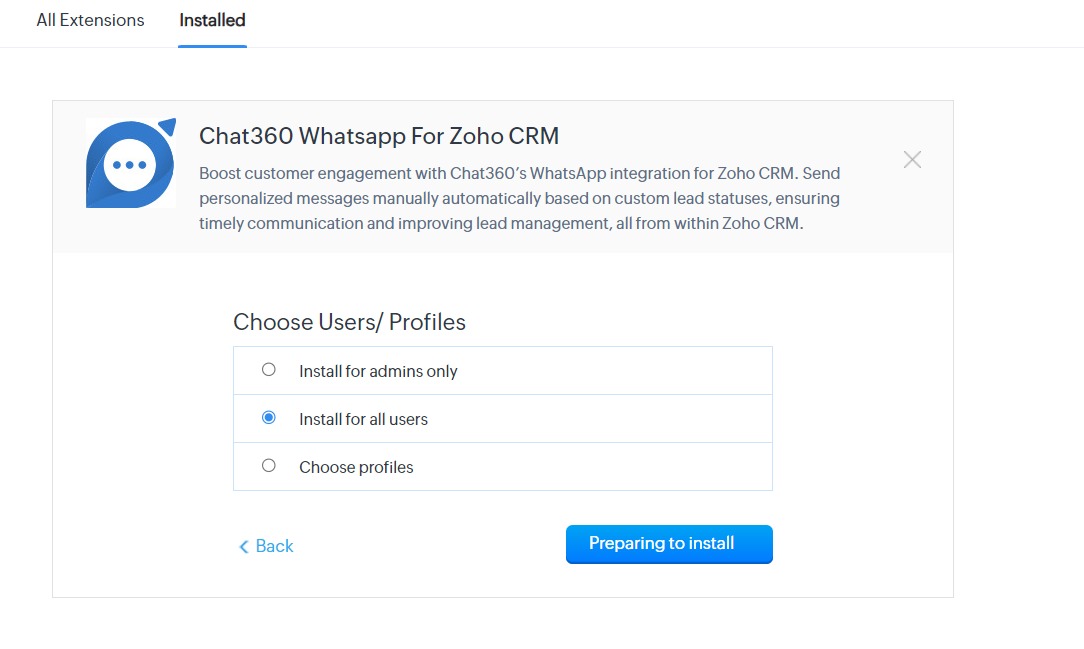
- Wait for installation confirmation (may take a few minutes).
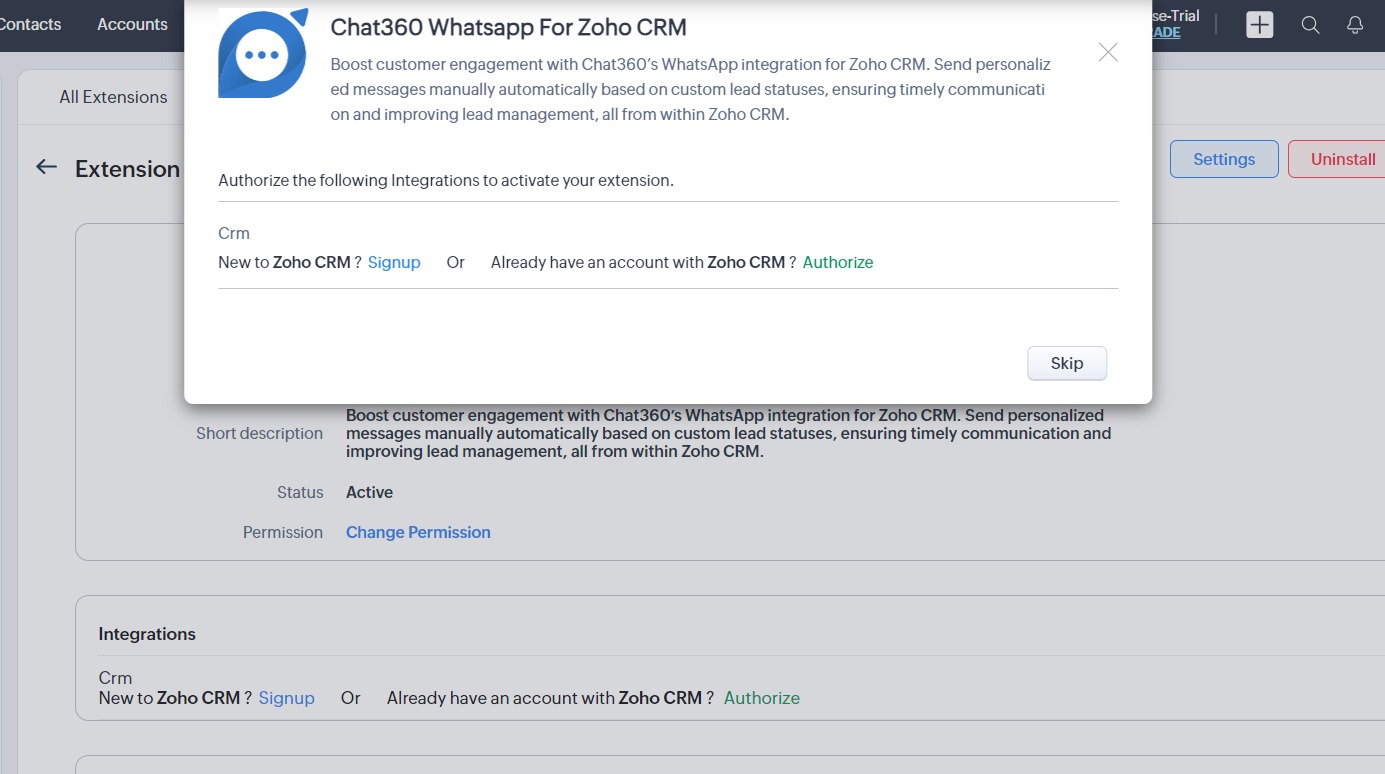
- After installation, you’ll be redirected to the Chat360 Setup page.
- Enter your Chat360 API Key and API Secret.
- To retrieve these from Chat360:
- Log in to Chat360 → Settings → API Keys.
- Copy the API Key and Secret into Zoho’s configuration form.
- Click Save and wait for the “Integration Active” confirmation.
- Ensure the integration status reads Active in Zoho’s Installed Packages.
- If authentication fails, re-enter credentials and resubmit.
-
1. Access Zoho Marketplace
2. Install Chat360 Integration
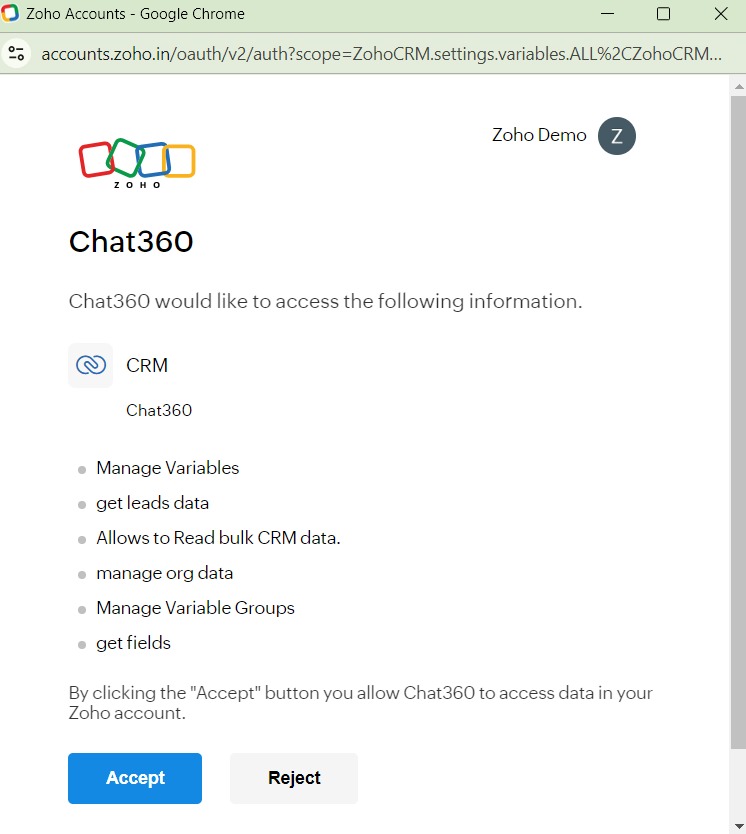
3. Configure API Authentication
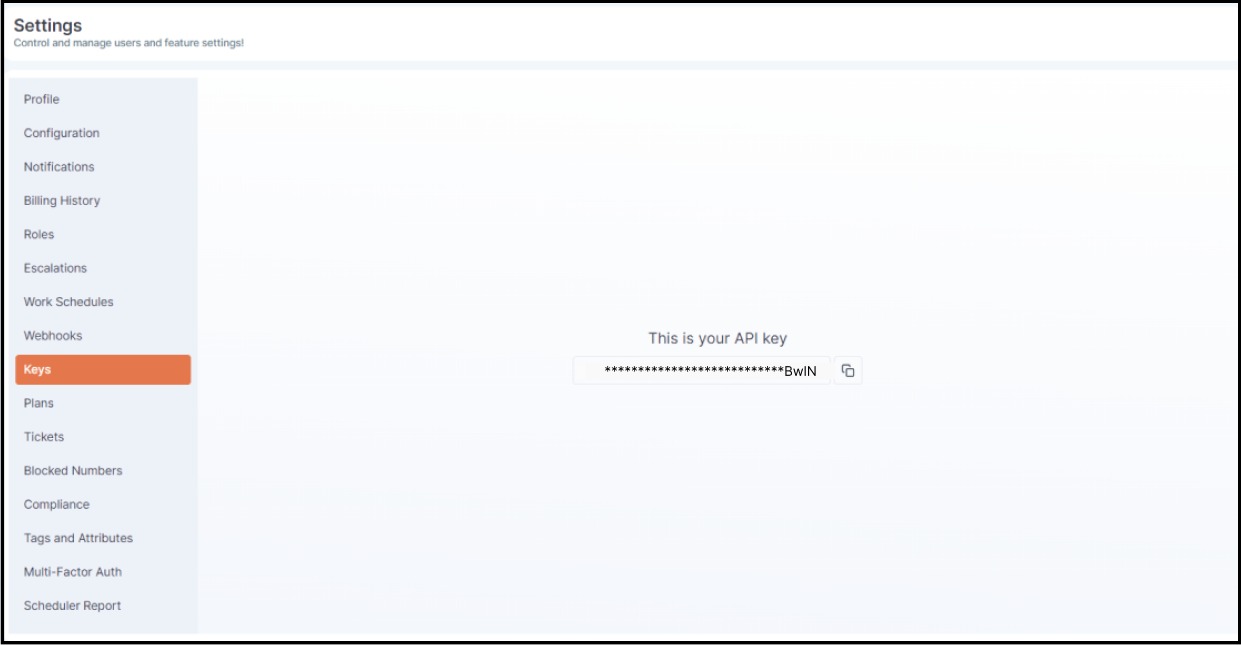
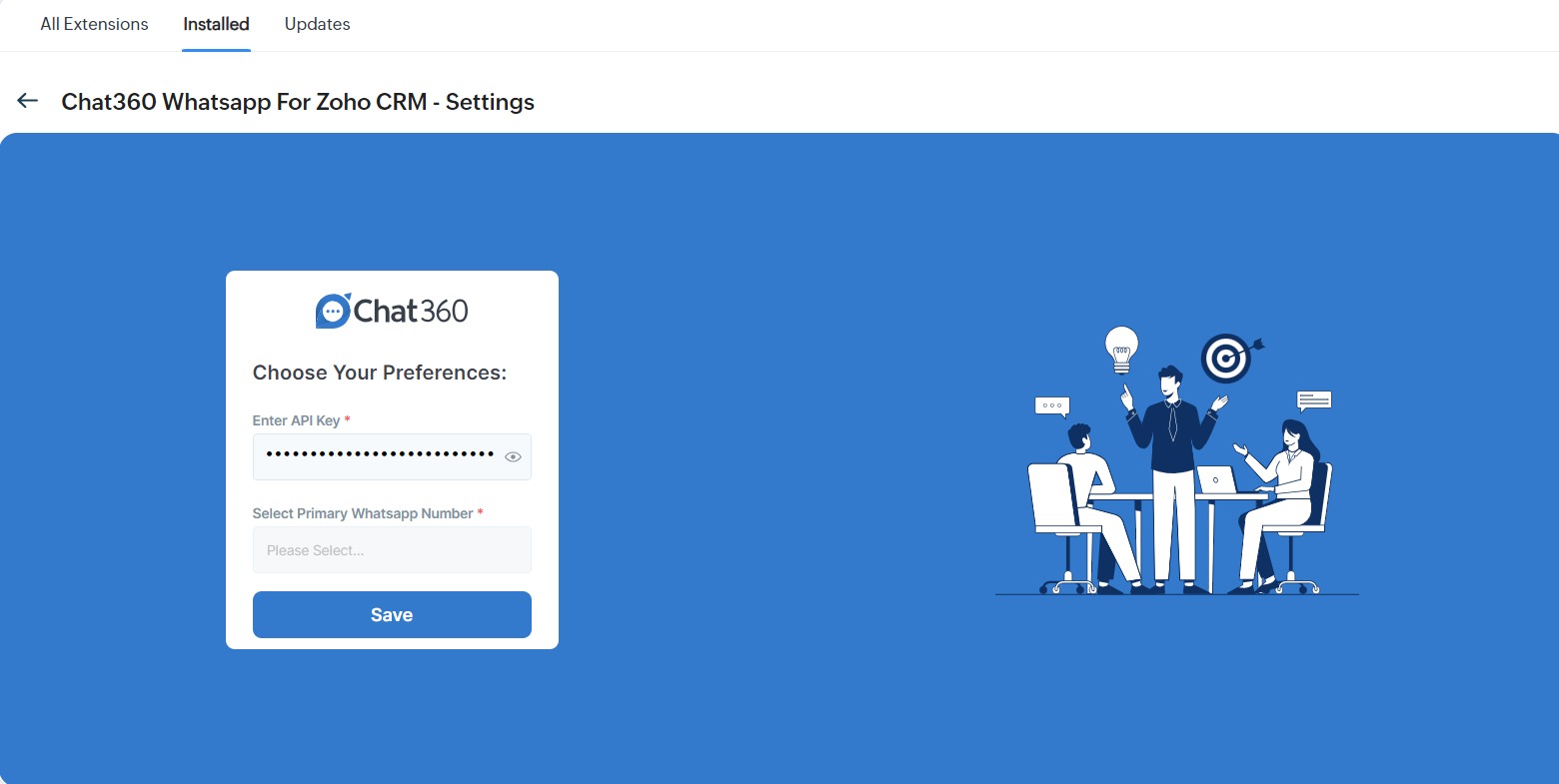
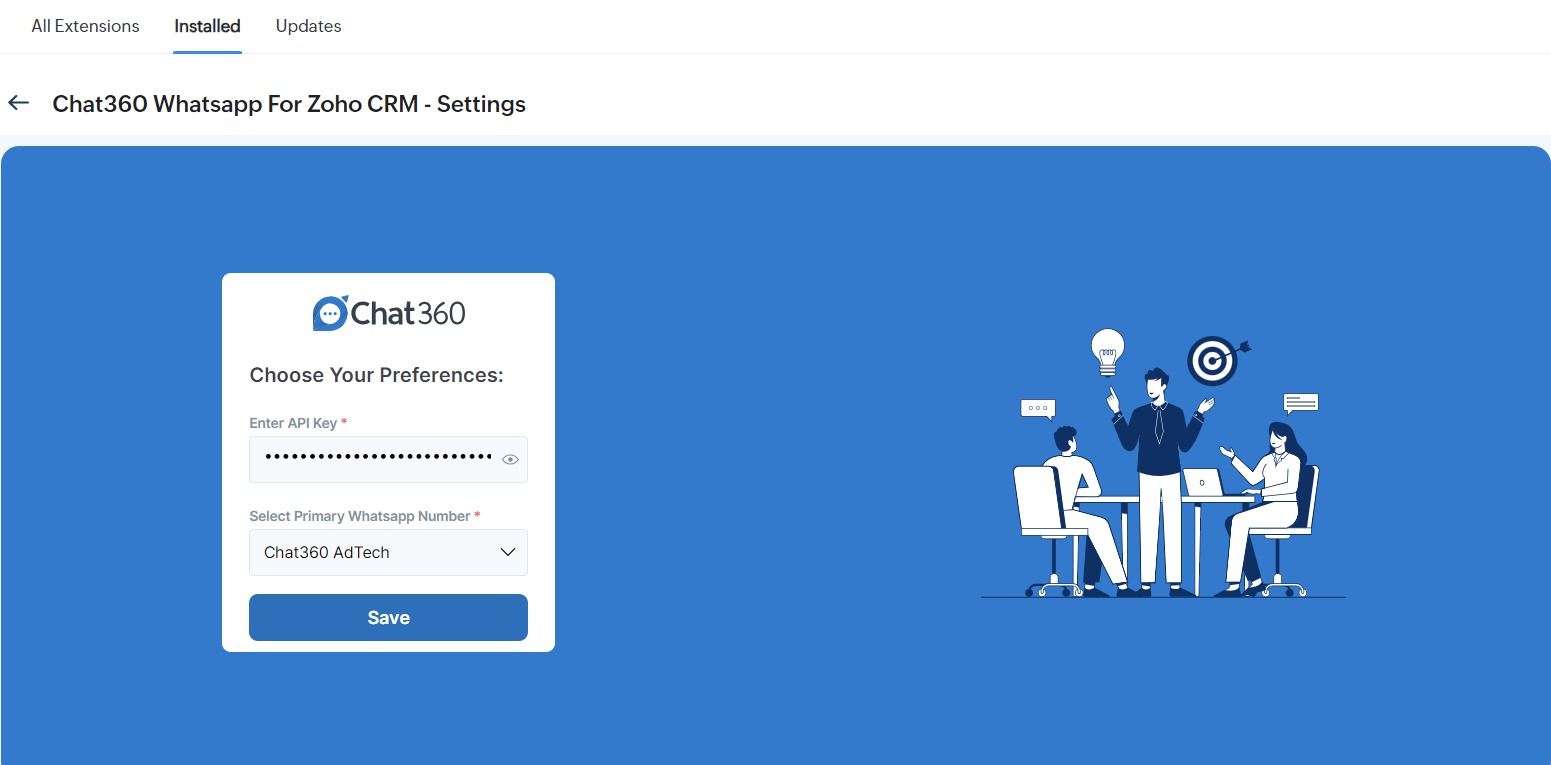
4. Verify & Finalize
-
Key Benefits
- Unified Lead Engagement: Chat with prospects on WhatsApp directly from Zoho lead records.
- Automated Workflows: Trigger WhatsApp templates and automated follow-ups based on Zoho workflows or field updates.
- Centralized History: All WhatsApp conversation logs sync back to Zoho under the lead’s activity timeline.
- Improved Response Rates: Real-time, personalized outreach leads to faster lead qualification.
- Minimal Setup: Configure once to enable continuous, bi-directional data flow between Zoho and Chat360.
-
Use Cases
- Instant Lead Outreach: As soon as a new lead is created in Zoho, automatically send a WhatsApp welcome message using a pre-approved template.
- Abandoned Form Follow-Up: When a lead’s form status changes to “Incomplete,” trigger a WhatsApp reminder within minutes.
- Deal Stage Notifications: Notify sales reps via WhatsApp when a deal moves to “Closing,” ensuring timely action.
- Support Ticket Escalation: When a support case is marked “High Priority,” automatically alert the customer and support manager via WhatsApp.
- Event Registration Confirmation: Upon adding a webinar registration in Zoho, send a WhatsApp confirmation with event details and calendar invites.
-
Configuring the “Chat on WhatsApp” Button
Overview
-
Steps to Configure
-
1. Customize the Leads Module
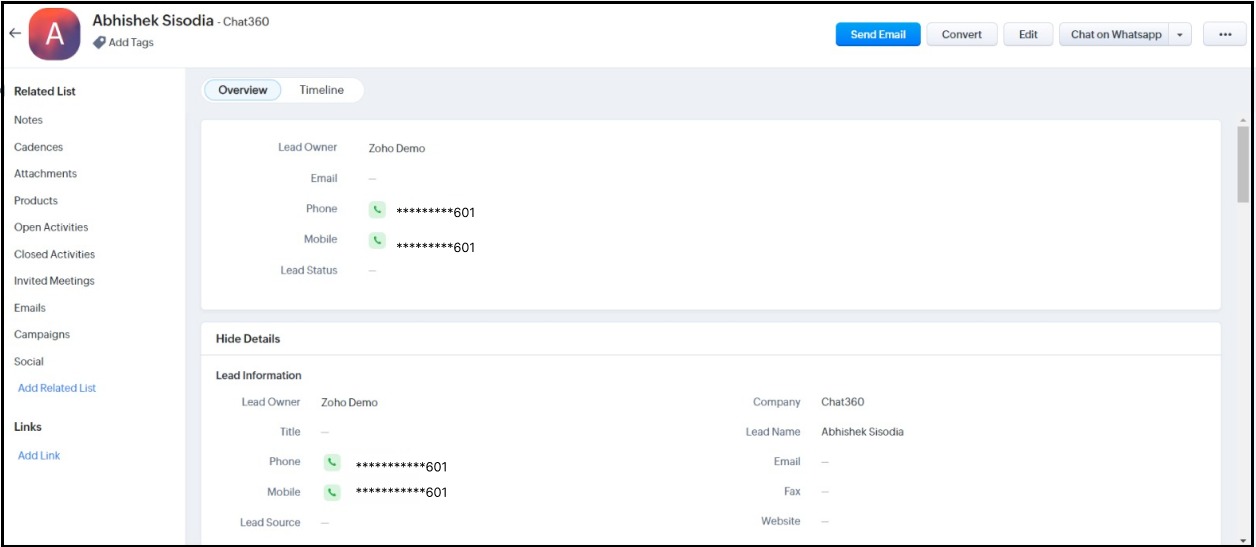
- Action: In Zoho CRM, go to Setup → Customization → Modules → Leads → Layout.
- Details: Drag the Chat on WhatsApp button component into your Leads detail page.
- Tip: Place the button near key fields (e.g., phone number) for immediate access.
- Action: Configure the button’s action to open Chat360’s WhatsApp chat interface in an iFrame.
- Details: The iFrame loads Chat360’s live chat widget, pre-authenticated with the lead’s phone number.
- Pro Tip: Preload up to three most-used message templates in the widget’s dropdown to speed up outreach.
- Action: Click the Chat on WhatsApp button to send a template or free-form message.
- Details All messages (outbound templates and incoming replies) sync back to Zoho under the lead’s activity feed.
- Note: Regularly refresh the CRM record to pull in new responses and ensure your conversation log stays up to date.
2. iFrame Setup for WhatsApp Chat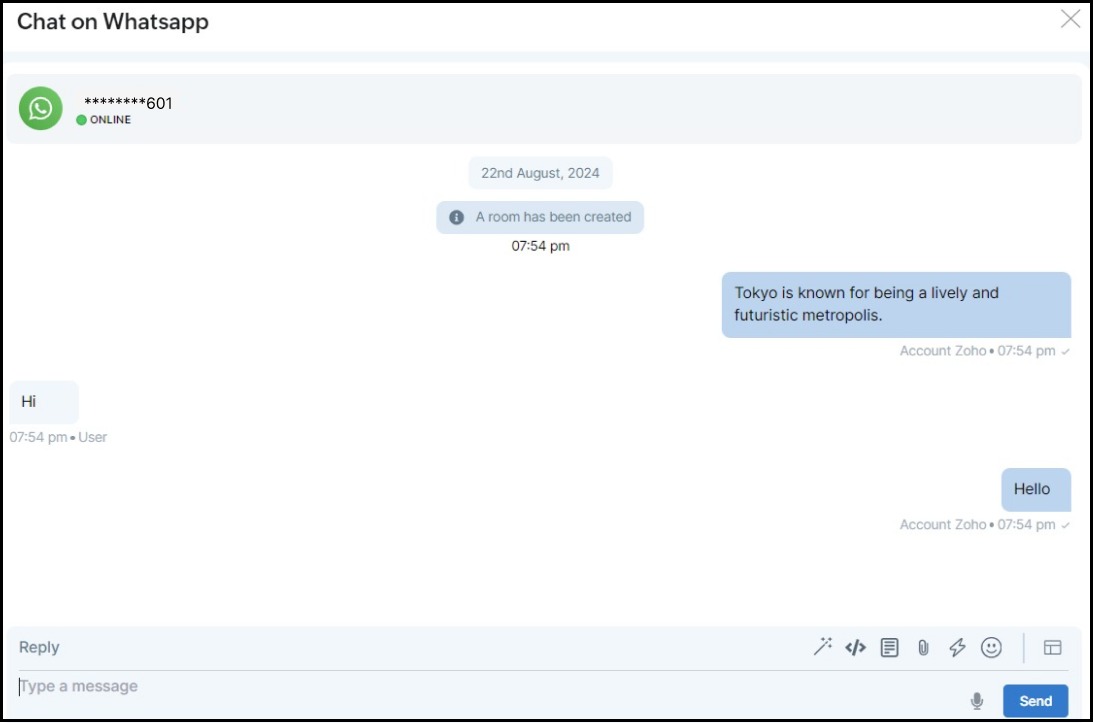
3. Initiating Two-Way Conversations
Empower your sales team to launch WhatsApp conversations directly from Zoho CRM lead records. By embedding a “Chat on WhatsApp” button, reps can send templates, view replies, and maintain full two-way chat history—all without leaving the CRM interface.
-
Key Benefits
- Seamless Access: One-click launch of WhatsApp chat directly from a lead’s record.
- Template-Driven Outreach: Quickly send approved WhatsApp templates without manual copy-paste.
- Complete Conversation History: Automatically log all messages in Zoho for audit and follow-up.
- Improved Productivity: Reduce context-switching by centralizing communication in the CRM.
- Real-Time Tracking: Reps see live chat status and responses without leaving Zoho.
-
Use Cases
- Lead Qualification: Sales reps instantly greet new leads on WhatsApp with a pre-approved “Welcome” template.
- Follow-Up Reminders: For warm leads, trigger template-based reminders (“Did you have time to review?”) right from their CRM record.
- Deal Negotiation: Send proposal PDFs or price updates via WhatsApp while viewing opportunity details in Zoho.
- Customer Support: From a support ticket in Zoho, transition to WhatsApp to resolve urgent requests with richer conversation.
- Feedback Collection: After closing a deal, send a satisfaction survey template on WhatsApp and capture feedback automatically in Zoho.
-
Enabling Workflow Automation in Zoho CRM
Overview
-
Configuration Steps
- Action: In Zoho CRM, navigate to Setup → Automation → Workflow Rules.
- Details: Select the Leads module (or your target module) to define where automated actions will occur.
- Tip: Begin with a simple “Lead Created” workflow to validate the integration before adding complexity.
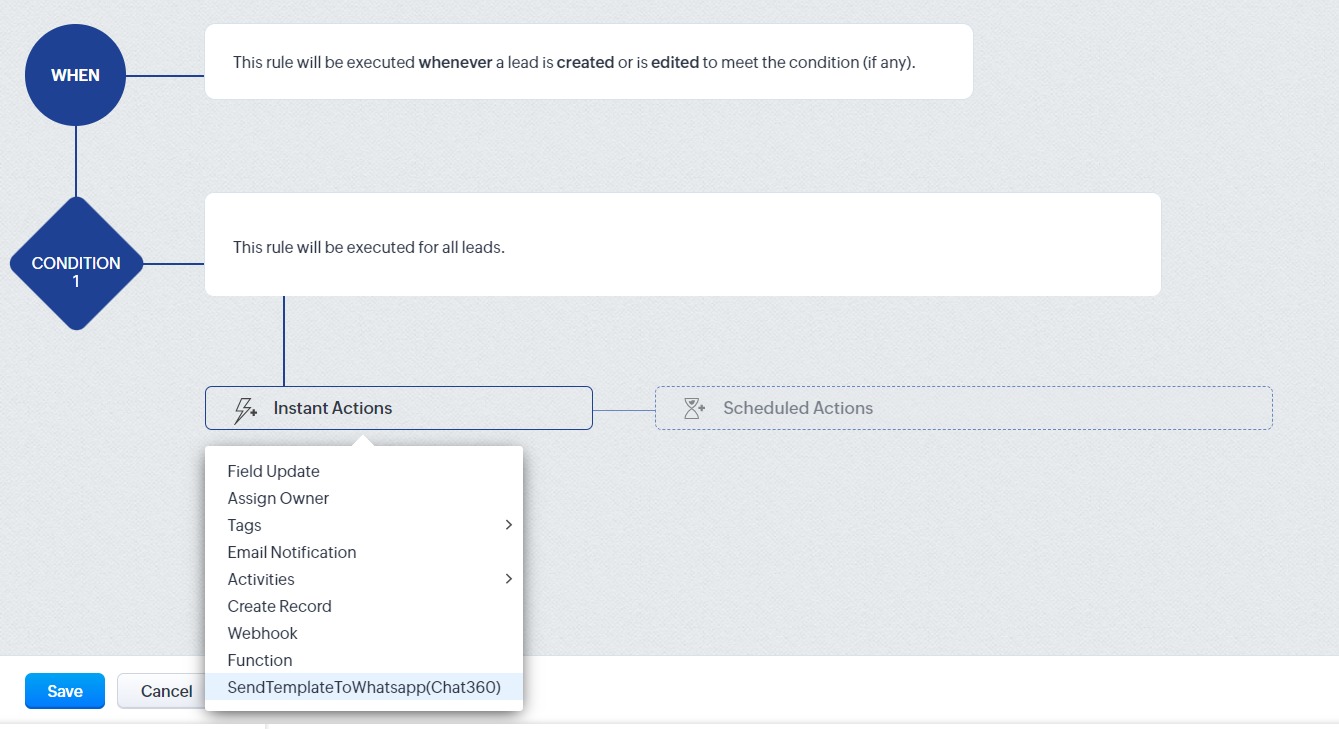
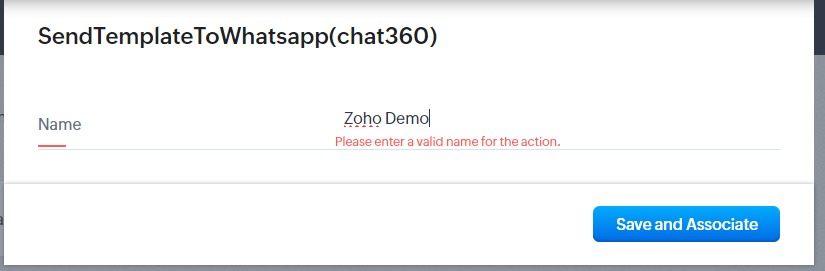
- Action: Click Create Rule, name the workflow, and set the trigger event (e.g., On Record Create or On Field Update).
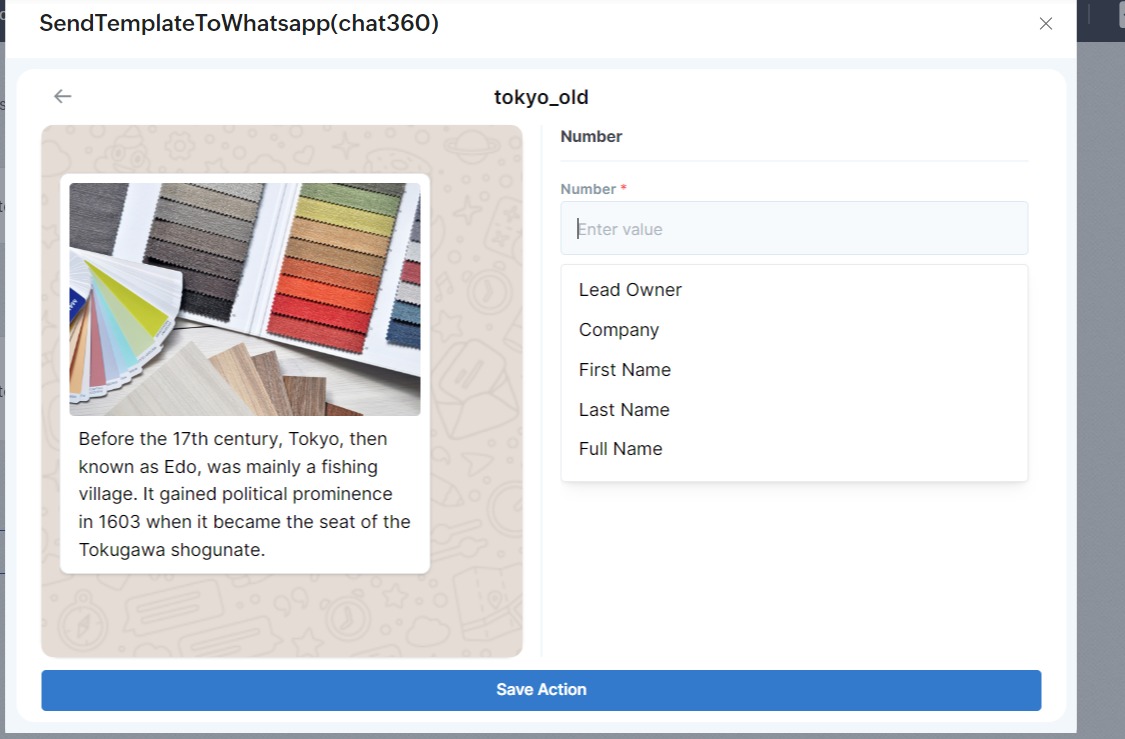
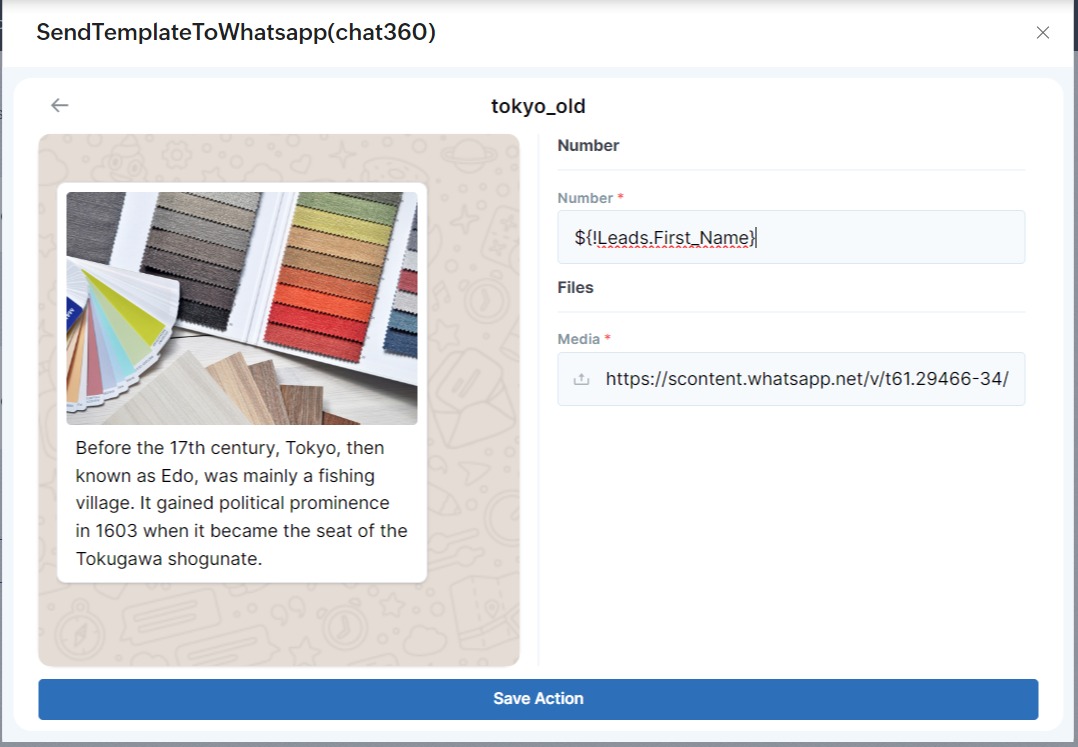
- Details: Under Instant Actions, choose Function → Send WhatsApp Message and select the approved Chat360 template to dispatch.
- Pro Tip: Combine multiple conditions using AND/OR logic (e.g., Lead Source = “Web Form” AND Status = “New”) for targeted messaging.
- Action: Save the workflow and switch it ON.
- Details: Create or update a lead record matching your trigger criteria to verify that the WhatsApp template is sent automatically.
- Important: Monitor execution logs (Image 10 in the PDF) to confirm successful message deliveries and adjust rules as needed.
Leverage Zoho CRM’s workflow rules to trigger WhatsApp messages automatically via Chat360. Configure conditions—such as lead creation or updates—to send predefined templates without manual intervention, ensuring timely and consistent outreach.
-
1. Access Workflow Rules
-
Key Benefits
- Hands-Free Outreach: Automate routine messages (e.g., welcome messages, follow-ups) to save time.
- Consistent Engagement: Ensure every qualified lead receives the correct WhatsApp template at the right moment.
- Data-Driven Triggers: Use CRM field values and logic to customize messaging for specific segments.
- Scalable Process: Deploy dozens of workflows across modules without additional development effort.
- Enhanced Visibility: Track automated message success directly within Zoho’s workflow execution logs.
-
Use Cases
- New Lead Welcome: Automatically send a “Thanks for showing interest!” WhatsApp template as soon as a lead record is created.
- Status-Based Reminders: Trigger a payment reminder template when a lead’s status changes to “Pending Payment.”
- Re-Engagement Campaigns: For leads marked “Cold” after 30 days, send a “We Miss You” template without manual follow-up.
- Event Invitations: When a custom field “Webinar Registered” is checked, dispatch the event details template via WhatsApp.
- Feedback Requests: After closing an opportunity, auto-send a satisfaction survey template to gather customer feedback.
-
Troubleshooting & Support
- Authentication Failures: Ensure Chat360 API key and Zoho credentials are entered correctly.
- Workflow Errors: Review your trigger conditions and function mappings for typos or misconfigurations.
- Delivery Issues: Confirm that each lead’s phone number is WhatsApp–enabled and formatted per international standards.
- Support: For unresolved problems, consult the Chat360 Support Page or contact support via email/live chat. Keep a record of error messages (Image 11 in the PDF) to expedite assistance.
-
Use Cases for Zoho Integration with Chat360
1. Lead Conversion Acceleration via WhatsApp Trigger
-
How it Works:
- A new lead fills out a form on your website.
- Workflow automation in Zoho triggers a pre-approved WhatsApp template using Chat360.
- The template introduces the brand and offers the next steps (e.g., scheduling a demo).
-
Key Benefits:
- Automated outreach within seconds of lead creation.
- Increases engagement likelihood by meeting leads where they are: WhatsApp.
- Reduces manual effort by sales agents.
Objective
Shorten lead response time and accelerate conversion through instant engagement.
2. Instant Support Engagement with “Chat on WhatsApp” Button
-
How it Works:
- Sales reps click the “Chat on WhatsApp” button inside the Zoho lead view.
- An iframe opens with Chat360’s live chat interface.
- Agents can select pre-saved templates or chat manually.
-
Key Benefits:
- Seamless transition from CRM to WhatsApp without switching tools.
- Enhances response time and context-aware communication.
- All chat history is logged within Zoho for future reference.
Objective
Enable real-time conversations between leads and support/sales teams.
3. Automated Reminder Campaigns via Workflow Triggers
-
How it Works:
- A lead status changes to “Follow-up Needed” in Zoho CRM.
- A Zoho Workflow Rule sends a reminder template via Chat360's WhatsApp channel.
- Follow-up is automatically scheduled based on rules (e.g., 3 days of inactivity).
-
Key Benefits:
- Maintains consistent communication cadence.
- Reduces missed follow-ups by relying on automation.
- Improves lead nurturing through timely engagement.
Objective
Ensure consistent follow-ups for leads in critical lifecycle stages.
4. Two-Way Conversational Logging for Compliance & Visibility
-
How it Works:
- Every WhatsApp message—sent or received—is logged automatically within the Zoho lead record.
- Agents can review the chat thread directly from the lead’s timeline.
-
Key Benefits:
- No loss of context across team members.
- Enhances transparency for managers reviewing communications.
- Simplifies hand-offs between team members.
Objective
Maintain a full audit trail of customer interactions.
5. WhatsApp-Based Deal Closure Confirmation
-
How it Works:
- When a deal is marked “Closed Won” in Zoho, a WhatsApp template is triggered.
- The message contains a confirmation along with the next steps (e.g., onboarding links or payment instructions).
-
Key Benefits:
- Reinforces credibility and builds trust with the customer.
- Speeds up onboarding and downstream processes.
- Personalised experience enhances customer satisfaction.
Objective
Send real-time deal confirmations and next steps via WhatsApp.